
 创作
2 分钟
最新文章
全部归档
创作
2 分钟
 小说
53 分钟
 教程
3 分钟
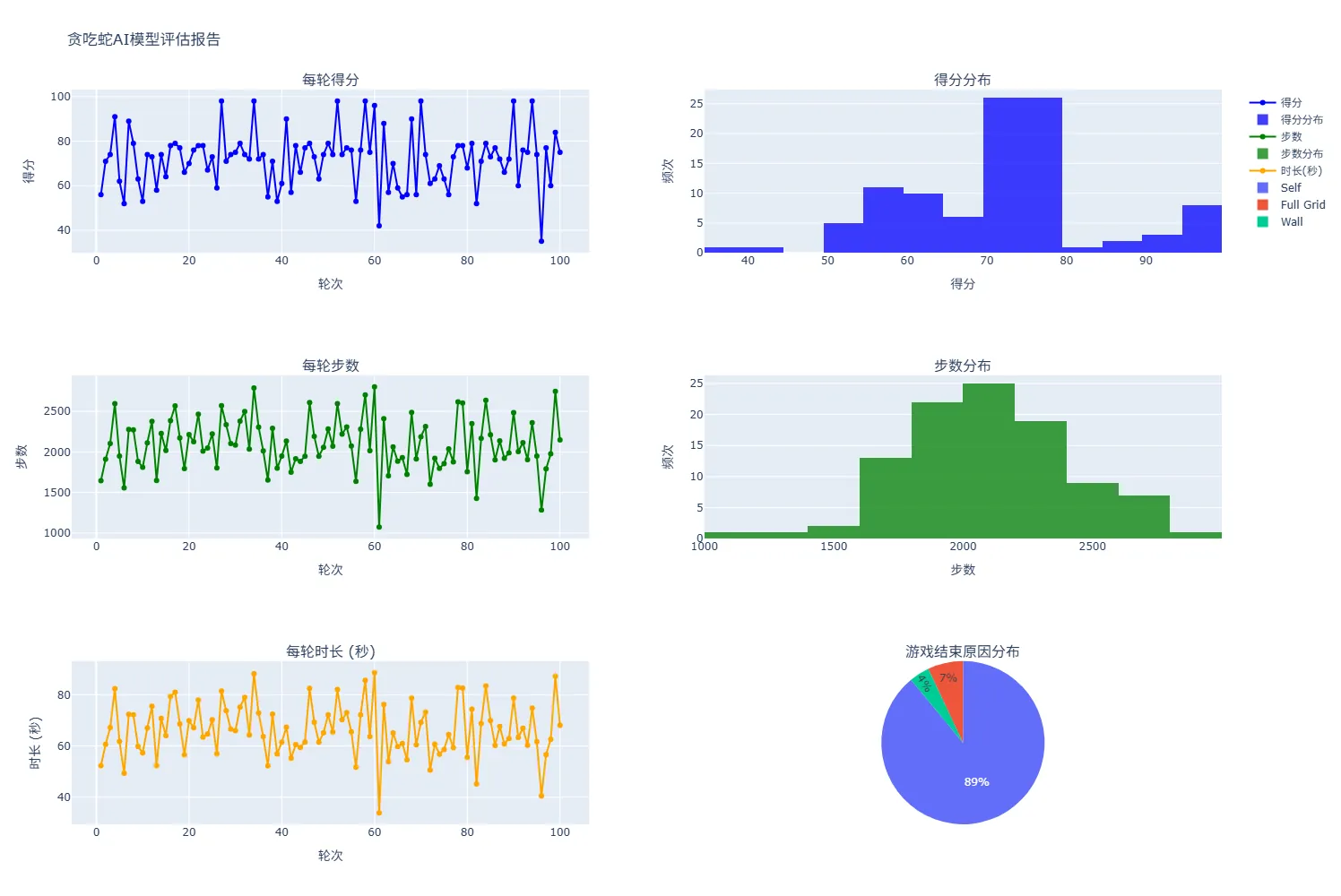
遗传算法与神经网络:用进化训练贪吃蛇
当梯度下降陷入局部最优解时,不妨试试另一条路:让神经网络像生物一样“进化”。本文介绍如何用遗传算法(选择、交叉、变异)训练一个贪吃蛇智能体,附完整 Python 源码与训练反思。
阅读全文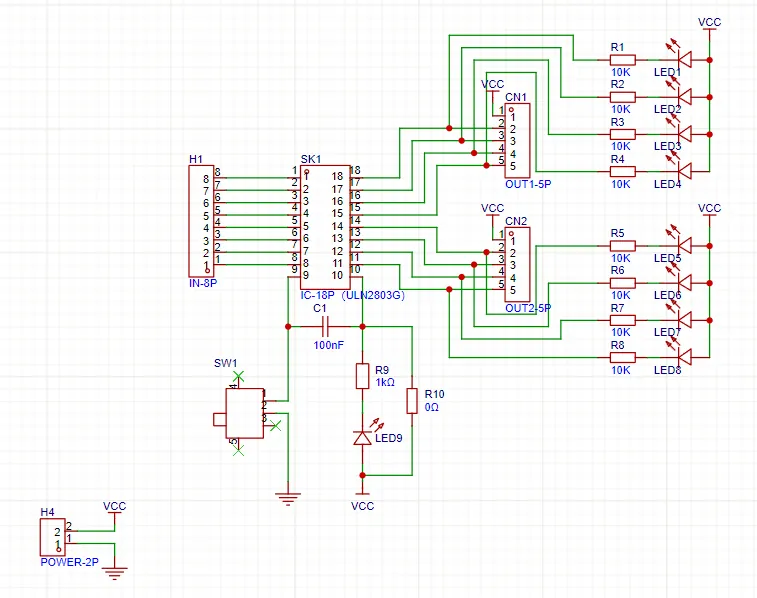 开发板
5 分钟
DIY—ESP32云台(持续更新中)
为满足业余射电天文观测需求,我用 ESP32 与 ULN2003 驱动电路 DIY 了一台低成本云台,充当天线”赤道仪”。本文记录从步进电机驱动原理研究到云台成品的完整过程,持续更新中。
阅读全文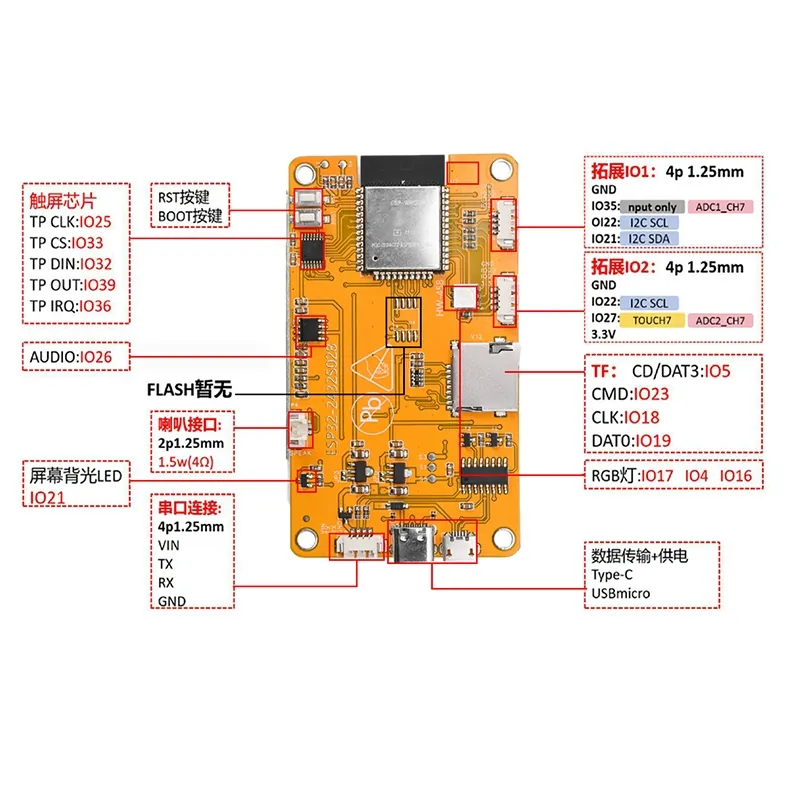 开发板
14 分钟
开发板研究笔记—ESP32特别篇:ESP32-2432S028
ESP32-2432S028R 开发板在创客社区中被称为“Cheap Yellow Display”或简称 CYD。这款开发板的主芯片是 ESP32-WROOM-32 模组,自带 2.8 英寸 TFT 触摸屏 LCD microSD 卡接口 RGB 指示灯 LDR(光敏电阻器) 供电、串口通信电路 下面是它的背面图以及相关部分的说明: 屏幕显示驱动相关引脚 SPI Pin GPIO MISO GPIO 12 MOSI GPIO 13 SCKL GPIO 14 CS GPIO 15 DC GPIO 2 RST -1 Backlight Pin GPIO 21 屏幕触屏驱动相关引脚 SPI Pin GPIO IRQ GPIO 36 MOSI GPIO 32 MISO GPIO 39 CLK GPIO 25 CS GPIO 33 RGB灯珠相关引脚 RGB LED GPIO Red LED GPIO 4 Green LED GPIO 16 Blue LED GPIO 17 MicroSD卡相关引脚 MicroSD card SPI GPIO MISO GPIO 19 MOSI GPIO 23 SCK GPIO 18 CS GPIO 5 LDR GPIO 34 Speaker GPIO 26 BOOT Button GPIO 0 通过图示和表格可以看出,ESP32开发板的许多引脚已被占用。因此,若要使用这块板子进行开发,特别是涉及引脚需求较多的外设时,需慎重考虑是否适合选择此板。接下来我们通过一些程序来检验这个板子的可用性。 1.RGB灯珠RGB,这三个字母分别表示红(red)、绿(green)、蓝(blue),这三种颜色构成了光的三原色,可以说我们能见到的任何一种颜色都由它们混合而成。所以我们只需要分别控制这三种光的强度,就可以控制它最终显示出来的颜色了。 因为这个RGB灯珠内部没有集成特殊芯片(这类芯片可以用最少的引脚来控制尽可能多的led),所以我们还得一个一个的去控制每一个LED。下面,我们通过一个代码来让这个RGB灯珠循环渐变彩虹: 123456789101112131415161718192021222324252627282930313233343536373839404142434445464748495051525354555657585960616263646566# 导入必要的模块from machine import Pin, PWMimport time# 定义RGB灯珠的引脚red_pin = Pin(4, Pin.OUT)green_pin = Pin(16, Pin.OUT)blue_pin = Pin(17, Pin.OUT)# 创建PWM对象来控制亮度pwm_red = PWM(red_pin)pwm_green = PWM(green_pin)pwm_blue = PWM(blue_pin)# 设置PWM频率为1000Hzpwm_red.freq(1000)pwm_green.freq(1000)pwm_blue.freq(1000)# 颜色轮函数def wheel(pos): """生成颜色轮上的颜色。""" if pos < 0 or pos > 255: r = g = b = 0 elif pos < 85: r = int(pos * 3) g = int(255 - pos * 3) b = 0 elif pos < 170: pos -= 85 r = int(255 - pos * 3) g = 0 b = int(pos * 3) else: pos -= 170 r = 0 g = int(pos * 3) b = int(255 - pos * 3) return (r, g, b)# 主程序入口def main(): pos = 0 # 初始化位置变量 try: while True: # 无限循环 color = wheel(pos) print("Setting color:", color) # 打印颜色值 # 将RGB值映射到PWM占空比范围(0-1023) pwm_red.duty(int(color[0] * 1023 / 255)) pwm_green.duty(int(color[1] * 1023 / 255)) pwm_blue.duty(int(color[2] * 1023 / 255)) # 更新位置变量以实现颜色轮的效果 pos = (pos + 1) % 256 time.sleep(0.03) # 可以根据需要调整这个值 except KeyboardInterrupt: pwm_red.deinit() pwm_green.deinit() pwm_blue.deinit() print("Color cycle stopped.")# 运行主程序main() 需要注意的是,RGB LED的引脚是反向逻辑的,也就是说它们是低电平有效。这意味着, HIGH = OFF 和 LOW = ON: 1234567891011121314151617from machine import Pinimport osfrom time import sleep# RGB LED at the backred_led = Pin(4, Pin.OUT)green_led = Pin(16, Pin.OUT)blue_led = Pin(17, Pin.OUT)# 开启red_led.off()green_led.off()blue_led.off()sleep(2)# 关闭red_led.on()green_led.on()blue_led.on() 2.MicroSD卡在ESP32-CYD上,设计者非常贴心地预留了microSD卡的卡槽。这一设计考虑到了用户未来可能面临的内存不足问题。特别是当你需要加载CYD自带屏幕的两个驱动库(显示与触屏),或者安装其他第三方库时,内存需求会不断增加。因此,拥有一个SD卡作为外部扩展内存是一个十分明智的选择。 为了能够让ESP32设备读取到SD卡的内容,我们需要一个驱动库(sdcard.py): 123456789101112131415161718192021222324252627282930313233343536373839404142434445464748495051525354555657585960616263646566676869707172737475767778798081828384858687888990919293949596979899100101102103104105106107108109110111112113114115116117118119120121122123124125126127128129130131132133134135136137138139140141142143144145146147148149150151152153154155156157158159160161162163164165166167168169170171172173174175176177178179180181182183184185186187188189190191192193194195196197198199200201202203204205206207208209210211212213214215216217218219220221222223224225226227228229230231232233234235236237238239240241242243244245246247248249250251252253254255256257258259260261262263264265266267268269270271272273274275276277278279280281282283284285286287288289290291292293294295296"""MicroPython driver for SD cards using SPI bus.Requires an SPI bus and a CS pin. Provides readblocks and writeblocksmethods so the device can be mounted as a filesystem.Example usage on pyboard: import pyb, sdcard, os sd = sdcard.SDCard(pyb.SPI(1), pyb.Pin.board.X5) pyb.mount(sd, '/sd2') os.listdir('/')Example usage on ESP8266: import machine, sdcard, os sd = sdcard.SDCard(machine.SPI(1), machine.Pin(15)) os.mount(sd, '/sd') os.listdir('/')"""from micropython import constimport time_CMD_TIMEOUT = const(100)_R1_IDLE_STATE = const(1 << 0)R1_ERASE_RESET = const(1 << 1)_R1_ILLEGAL_COMMAND = const(1 << 2)R1_COM_CRC_ERROR = const(1 << 3)R1_ERASE_SEQUENCE_ERROR = const(1 << 4)R1_ADDRESS_ERROR = const(1 << 5)R1_PARAMETER_ERROR = const(1 << 6)_TOKEN_CMD25 = const(0xFC)_TOKEN_STOP_TRAN = const(0xFD)_TOKEN_DATA = const(0xFE)class SDCard: def __init__(self, spi, cs, baudrate=1320000): self.spi = spi self.cs = cs self.cmdbuf = bytearray(6) self.dummybuf = bytearray(512) self.tokenbuf = bytearray(1) for i in range(512): self.dummybuf[i] = 0xFF self.dummybuf_memoryview = memoryview(self.dummybuf) # initialise the card self.init_card(baudrate) def init_spi(self, baudrate): try: master = self.spi.MASTER except AttributeError: # on ESP8266 self.spi.init(baudrate=baudrate, phase=0, polarity=0) else: # on pyboard self.spi.init(master, baudrate=baudrate, phase=0, polarity=0) def init_card(self, baudrate): # init CS pin self.cs.init(self.cs.OUT, value=1) # init SPI bus; use low data rate for initialisation self.init_spi(100000) # clock card at least 100 cycles with cs high for i in range(16): self.spi.write(b"\xff") # CMD0: init card; should return _R1_IDLE_STATE (allow 5 attempts) for _ in range(5): if self.cmd(0, 0, 0x95) == _R1_IDLE_STATE: break else: raise OSError("no SD card") # CMD8: determine card version r = self.cmd(8, 0x01AA, 0x87, 4) if r == _R1_IDLE_STATE: self.init_card_v2() elif r == (_R1_IDLE_STATE | _R1_ILLEGAL_COMMAND): self.init_card_v1() else: raise OSError("couldn't determine SD card version") # get the number of sectors # CMD9: response R2 (R1 byte + 16-byte block read) if self.cmd(9, 0, 0, 0, False) != 0: raise OSError("no response from SD card") csd = bytearray(16) self.readinto(csd) if csd[0] & 0xC0 == 0x40: # CSD version 2.0 self.sectors = ((csd[8] << 8 | csd[9]) + 1) * 1024 elif csd[0] & 0xC0 == 0x00: # CSD version 1.0 (old, <=2GB) c_size = (csd[6] & 0b11) << 10 | csd[7] << 2 | csd[8] >> 6 c_size_mult = (csd[9] & 0b11) << 1 | csd[10] >> 7 read_bl_len = csd[5] & 0b1111 capacity = (c_size + 1) * (2 ** (c_size_mult + 2)) * (2**read_bl_len) self.sectors = capacity // 512 else: raise OSError("SD card CSD format not supported") # print('sectors', self.sectors) # CMD16: set block length to 512 bytes if self.cmd(16, 512, 0) != 0: raise OSError("can't set 512 block size") # set to high data rate now that it's initialised self.init_spi(baudrate) def init_card_v1(self): for i in range(_CMD_TIMEOUT): self.cmd(55, 0, 0) if self.cmd(41, 0, 0) == 0: # SDSC card, uses byte addressing in read/write/erase commands self.cdv = 512 # print("[SDCard] v1 card") return raise OSError("timeout waiting for v1 card") def init_card_v2(self): for i in range(_CMD_TIMEOUT): time.sleep_ms(50) self.cmd(58, 0, 0, 4) self.cmd(55, 0, 0) if self.cmd(41, 0x40000000, 0) == 0: self.cmd(58, 0, 0, -4) # 4-byte response, negative means keep the first byte ocr = self.tokenbuf[0] # get first byte of response, which is OCR if not ocr & 0x40: # SDSC card, uses byte addressing in read/write/erase commands self.cdv = 512 else: # SDHC/SDXC card, uses block addressing in read/write/erase commands self.cdv = 1 # print("[SDCard] v2 card") return raise OSError("timeout waiting for v2 card") def cmd(self, cmd, arg, crc, final=0, release=True, skip1=False): self.cs(0) # create and send the command buf = self.cmdbuf buf[0] = 0x40 | cmd buf[1] = arg >> 24 buf[2] = arg >> 16 buf[3] = arg >> 8 buf[4] = arg buf[5] = crc self.spi.write(buf) if skip1: self.spi.readinto(self.tokenbuf, 0xFF) # wait for the response (response[7] == 0) for i in range(_CMD_TIMEOUT): self.spi.readinto(self.tokenbuf, 0xFF) response = self.tokenbuf[0] if not (response & 0x80): # this could be a big-endian integer that we are getting here # if final<0 then store the first byte to tokenbuf and discard the rest if final < 0: self.spi.readinto(self.tokenbuf, 0xFF) final = -1 - final for j in range(final): self.spi.write(b"\xff") if release: self.cs(1) self.spi.write(b"\xff") return response # timeout self.cs(1) self.spi.write(b"\xff") return -1 def readinto(self, buf): self.cs(0) # read until start byte (0xff) for i in range(_CMD_TIMEOUT): self.spi.readinto(self.tokenbuf, 0xFF) if self.tokenbuf[0] == _TOKEN_DATA: break time.sleep_ms(1) else: self.cs(1) raise OSError("timeout waiting for response") # read data mv = self.dummybuf_memoryview if len(buf) != len(mv): mv = mv[: len(buf)] self.spi.write_readinto(mv, buf) # read checksum self.spi.write(b"\xff") self.spi.write(b"\xff") self.cs(1) self.spi.write(b"\xff") def write(self, token, buf): self.cs(0) # send: start of block, data, checksum self.spi.read(1, token) self.spi.write(buf) self.spi.write(b"\xff") self.spi.write(b"\xff") # check the response if (self.spi.read(1, 0xFF)[0] & 0x1F) != 0x05: self.cs(1) self.spi.write(b"\xff") return # wait for write to finish while self.spi.read(1, 0xFF)[0] == 0: pass self.cs(1) self.spi.write(b"\xff") def write_token(self, token): self.cs(0) self.spi.read(1, token) self.spi.write(b"\xff") # wait for write to finish while self.spi.read(1, 0xFF)[0] == 0x00: pass self.cs(1) self.spi.write(b"\xff") def readblocks(self, block_num, buf): nblocks = len(buf) // 512 assert nblocks and not len(buf) % 512, "Buffer length is invalid" if nblocks == 1: # CMD17: set read address for single block if self.cmd(17, block_num * self.cdv, 0, release=False) != 0: # release the card self.cs(1) raise OSError(5) # EIO # receive the data and release card self.readinto(buf) else: # CMD18: set read address for multiple blocks if self.cmd(18, block_num * self.cdv, 0, release=False) != 0: # release the card self.cs(1) raise OSError(5) # EIO offset = 0 mv = memoryview(buf) while nblocks: # receive the data and release card self.readinto(mv[offset : offset + 512]) offset += 512 nblocks -= 1 if self.cmd(12, 0, 0xFF, skip1=True): raise OSError(5) # EIO def writeblocks(self, block_num, buf): nblocks, err = divmod(len(buf), 512) assert nblocks and not err, "Buffer length is invalid" if nblocks == 1: # CMD24: set write address for single block if self.cmd(24, block_num * self.cdv, 0) != 0: raise OSError(5) # EIO # send the data self.write(_TOKEN_DATA, buf) else: # CMD25: set write address for first block if self.cmd(25, block_num * self.cdv, 0) != 0: raise OSError(5) # EIO # send the data offset = 0 mv = memoryview(buf) while nblocks: self.write(_TOKEN_CMD25, mv[offset : offset + 512]) offset += 512 nblocks -= 1 self.write_token(_TOKEN_STOP_TRAN) def ioctl(self, op, arg): if op == 4: # get number of blocks return self.sectors if op == 5: # get block size in bytes return 512 接下来我们可以通过代码对sd卡进行读写操作: 123456789101112131415161718192021222324252627282930313233343536373839404142434445464748495051525354555657import os from machine import Pin, SoftSPIfrom sdcard import SDCard# 接线说明:# MISO -> GPIO 19# MOSI -> GPIO 23# CLK -> GPIO 18# CS -> GPIO 5spisd = SoftSPI(-1, miso=Pin(19), mosi=Pin(23), sck=Pin(18))sd = SDCard(spisd, Pin(5))# os.listdir() --> 返回当前目录下的所有文件和目录的列表print('未挂载SD之前:', os.listdir()) print("-------------------------------")# 创建一个虚拟文件系统,用于挂载SD卡vfs = os.VfsFat(sd) # 挂载SD卡到虚拟文件系统:将虚拟文件系统挂载到/sd目录。之后,对/sd目录的访问将实际访问SD卡。os.mount(vfs, '/sd') print('挂载SD之后:', os.listdir())# 对SD卡进行操作try: # 切换到SD卡目录 os.chdir('/sd') print('SD卡中的文件:', os.listdir()) # 写入文件到SD卡 with open("/sd/test.txt", "w") as f: for i in range(1, 101): f.write(str(i) + "\n") print("-------------------------------") print("已经将1~100写入到SD卡中的test.txt文件") print("-------------------------------") # 从SD卡读取文件并显示内容 """ 在运行之前,请确保你的sd卡内 包含一个名为url.txt的文件, 且里面写入了些文本 """ with open("/sd/url.txt", "r") as f: content = f.readlines() print("SD卡中url.txt文件的内容:") print("-------------------------------") for line in content: print(line.strip()) print("-------------------------------")except Exception as e: print("\n发生错误!", e)finally: os.umount('/sd') print("SD卡已卸载") 3.点亮屏幕3.1显示ESP32-CYD上自带了一个2.8 英寸(320x240) TFT 触摸屏 (LCD),TFT LCD 屏幕通过控制液晶分子的排列来改变光的透过率,从而实现图像的显示。这块屏幕的驱动芯片为ili9341,ILI9341 控制器负责将来自微控制器的显示数据转换为控制液晶分子的信号。当微控制器向 ILI9341 发送显示数据时,ILI9341 会根据这些数据控制 LCD 屏幕上的像素点,使其呈现出相应的颜色和亮度。 micropython驱动库(ili9341.py): 123456789101112131415161718192021222324252627282930313233343536373839404142434445464748495051525354555657585960616263646566676869707172737475767778798081828384858687888990919293949596979899100101102103104105106107108109110111112113114115116117118119120121122123124125126127128129130131132133134135136137138139140141142143144145146147148149150151152153154155156157158159160161162163164165166167168169170171172173174175176177178179180181182183184185186187188189190191192193194195196197198199200201202203204205206207208209210211212213214215216217218219220221222223224225226227228229230231232233234235236237238239240241242243244245246247248249250251252253254255256257258259260261262263264265266267268269270271272273274275276277278279280281282283284285286287288289290291292293294295296297298299300301302303304305306307308309310311312313314315316317318319320321322323324325326327328329330331332333334335336337338339340341342343344345346347348349350351352353354355356357358359360361362363364365366367368369370371372373374375376377378379380381382383384385386387388389390391392393394395396397398399400401402403404405406407408409410411412413414415416417418419420421422423424425426427428429430431432433434435436437438439440441442443444445446447448449450451452453454455456457458459460461462463464465466467468469470471472473474475476477478479480481482483484485486487488489490491492493494495496497498499500501502503504505506507508509510511512513514515516517518519520521522523524525526527528529530531532533534535536537538539540541542543544545546547548549550551552553554555556557558559560561562563564565566567568569570571572573574575576577578579580581582583584585586587588589590591592593594595596597598599600601602603604605606607608609610611612613614615616617618619620621622623624625626627628629630631632633634635636637638639640641642643644645646647648649650651652653654655656657658659660661662663664665666667668669670671672673674675676677678679680681682683684685686687688689690691692693694695696697698699700701702703704705706707708709710711712713714715716717718719720721722723724725726727728729730731732733734735736737738739740741742743744745746747748749750751752753754755756757758759760761762763764765766767768769770771772773774775776777778779780781782783784785786787788789790791792793794795796797798799800801802803804805806807808809810811812813814815816817818819820821822823824825826827828829830831832833834835836837838839840841842843844845846847848849850851852853854855856857858859860861862863864865866867868869870871872873874875876877878879880881882883884885886887888889890891892893894895896897898899900901902903904905906907908909910911912913914915916917918919920921922923924925926927928929930931932933934935936937938939940941942943944945946947948949950951952953954955956957958959960961962963964965966967968969970971972973974975976977978979980981982983984985986987988989990991992993994995996997998999100010011002100310041005100610071008100910101011101210131014101510161017101810191020102110221023102410251026102710281029103010311032103310341035103610371038103910401041104210431044104510461047104810491050105110521053105410551056105710581059106010611062106310641065106610671068106910701071107210731074"""ILI9341 LCD/Touch module."""from time import sleepfrom math import cos, sin, pi, radiansfrom sys import implementationfrom framebuf import FrameBuffer, RGB565 # type: ignorefrom micropython import const # type: ignoredef color565(r, g, b): """Return RGB565 color value. Args: r (int): Red value. g (int): Green value. b (int): Blue value. """ return (r & 0xf8) << 8 | (g & 0xfc) << 3 | b >> 3class Display(object): """Serial interface for 16-bit color (5-6-5 RGB) IL9341 display. Note: All coordinates are zero based. """ # Command constants from ILI9341 datasheet NOP = const(0x00) # No-op SWRESET = const(0x01) # Software reset RDDID = const(0x04) # Read display ID info RDDST = const(0x09) # Read display status SLPIN = const(0x10) # Enter sleep mode SLPOUT = const(0x11) # Exit sleep mode PTLON = const(0x12) # Partial mode on NORON = const(0x13) # Normal display mode on RDMODE = const(0x0A) # Read display power mode RDMADCTL = const(0x0B) # Read display MADCTL RDPIXFMT = const(0x0C) # Read display pixel format RDIMGFMT = const(0x0D) # Read display image format RDSELFDIAG = const(0x0F) # Read display self-diagnostic INVOFF = const(0x20) # Display inversion off INVON = const(0x21) # Display inversion on GAMMASET = const(0x26) # Gamma set DISPLAY_OFF = const(0x28) # Display off DISPLAY_ON = const(0x29) # Display on SET_COLUMN = const(0x2A) # Column address set SET_PAGE = const(0x2B) # Page address set WRITE_RAM = const(0x2C) # Memory write READ_RAM = const(0x2E) # Memory read PTLAR = const(0x30) # Partial area VSCRDEF = const(0x33) # Vertical scrolling definition MADCTL = const(0x36) # Memory access control VSCRSADD = const(0x37) # Vertical scrolling start address PIXFMT = const(0x3A) # COLMOD: Pixel format set WRITE_DISPLAY_BRIGHTNESS = const(0x51) # Brightness hardware dependent! READ_DISPLAY_BRIGHTNESS = const(0x52) WRITE_CTRL_DISPLAY = const(0x53) READ_CTRL_DISPLAY = const(0x54) WRITE_CABC = const(0x55) # Write Content Adaptive Brightness Control READ_CABC = const(0x56) # Read Content Adaptive Brightness Control WRITE_CABC_MINIMUM = const(0x5E) # Write CABC Minimum Brightness READ_CABC_MINIMUM = const(0x5F) # Read CABC Minimum Brightness FRMCTR1 = const(0xB1) # Frame rate control (In normal mode/full colors) FRMCTR2 = const(0xB2) # Frame rate control (In idle mode/8 colors) FRMCTR3 = const(0xB3) # Frame rate control (In partial mode/full colors) INVCTR = const(0xB4) # Display inversion control DFUNCTR = const(0xB6) # Display function control PWCTR1 = const(0xC0) # Power control 1 PWCTR2 = const(0xC1) # Power control 2 PWCTRA = const(0xCB) # Power control A PWCTRB = const(0xCF) # Power control B VMCTR1 = const(0xC5) # VCOM control 1 VMCTR2 = const(0xC7) # VCOM control 2 RDID1 = const(0xDA) # Read ID 1 RDID2 = const(0xDB) # Read ID 2 RDID3 = const(0xDC) # Read ID 3 RDID4 = const(0xDD) # Read ID 4 GMCTRP1 = const(0xE0) # Positive gamma correction GMCTRN1 = const(0xE1) # Negative gamma correction DTCA = const(0xE8) # Driver timing control A DTCB = const(0xEA) # Driver timing control B POSC = const(0xED) # Power on sequence control ENABLE3G = const(0xF2) # Enable 3 gamma control PUMPRC = const(0xF7) # Pump ratio control MIRROR_ROTATE = { # MADCTL configurations for rotation and mirroring (False, 0): 0x80, # 1000 0000 (False, 90): 0xE0, # 1110 0000 (False, 180): 0x40, # 0100 0000 (False, 270): 0x20, # 0010 0000 (True, 0): 0xC0, # 1100 0000 (True, 90): 0x60, # 0110 0000 (True, 180): 0x00, # 0000 0000 (True, 270): 0xA0 # 1010 0000 } def __init__(self, spi, cs, dc, rst, width=240, height=320, rotation=0, mirror=False, bgr=True, gamma=True): """Initialize OLED. Args: spi (Class Spi): SPI interface for OLED cs (Class Pin): Chip select pin dc (Class Pin): Data/Command pin rst (Class Pin): Reset pin width (Optional int): Screen width (default 240) height (Optional int): Screen height (default 320) rotation (Optional int): Rotation must be 0 default, 90. 180 or 270 mirror (Optional bool): Mirror display (default False) bgr (Optional bool): Swaps red and blue colors (default True) gamma (Optional bool): Custom gamma correction (default True) """ self.spi = spi self.cs = cs self.dc = dc self.rst = rst self.width = width self.height = height if (mirror, rotation) not in self.MIRROR_ROTATE: raise ValueError('Rotation must be 0, 90, 180 or 270.') else: self.rotation = self.MIRROR_ROTATE[mirror, rotation] if bgr: # Set BGR bit self.rotation |= 0b00001000 # Initialize GPIO pins and set implementation specific methods if implementation.name == 'circuitpython': self.cs.switch_to_output(value=True) self.dc.switch_to_output(value=False) self.rst.switch_to_output(value=True) self.reset = self.reset_cpy self.write_cmd = self.write_cmd_cpy self.write_data = self.write_data_cpy else: self.cs.init(self.cs.OUT, value=1) self.dc.init(self.dc.OUT, value=0) self.rst.init(self.rst.OUT, value=1) self.reset = self.reset_mpy self.write_cmd = self.write_cmd_mpy self.write_data = self.write_data_mpy self.reset() # Send initialization commands self.write_cmd(self.SWRESET) # Software reset sleep(.1) self.write_cmd(self.PWCTRB, 0x00, 0xC1, 0x30) # Pwr ctrl B self.write_cmd(self.POSC, 0x64, 0x03, 0x12, 0x81) # Pwr on seq. ctrl self.write_cmd(self.DTCA, 0x85, 0x00, 0x78) # Driver timing ctrl A self.write_cmd(self.PWCTRA, 0x39, 0x2C, 0x00, 0x34, 0x02) # Pwr ctrl A self.write_cmd(self.PUMPRC, 0x20) # Pump ratio control self.write_cmd(self.DTCB, 0x00, 0x00) # Driver timing ctrl B self.write_cmd(self.PWCTR1, 0x23) # Pwr ctrl 1 self.write_cmd(self.PWCTR2, 0x10) # Pwr ctrl 2 self.write_cmd(self.VMCTR1, 0x3E, 0x28) # VCOM ctrl 1 self.write_cmd(self.VMCTR2, 0x86) # VCOM ctrl 2 self.write_cmd(self.MADCTL, self.rotation) # Memory access ctrl self.write_cmd(self.VSCRSADD, 0x00) # Vertical scrolling start address self.write_cmd(self.PIXFMT, 0x55) # COLMOD: Pixel format self.write_cmd(self.FRMCTR1, 0x00, 0x18) # Frame rate ctrl self.write_cmd(self.DFUNCTR, 0x08, 0x82, 0x27) self.write_cmd(self.ENABLE3G, 0x00) # Enable 3 gamma ctrl self.write_cmd(self.GAMMASET, 0x01) # Gamma curve selected if gamma: # Use custom gamma correction values self.write_cmd(self.GMCTRP1, 0x0F, 0x31, 0x2B, 0x0C, 0x0E, 0x08, 0x4E, 0xF1, 0x37, 0x07, 0x10, 0x03, 0x0E, 0x09, 0x00) self.write_cmd(self.GMCTRN1, 0x00, 0x0E, 0x14, 0x03, 0x11, 0x07, 0x31, 0xC1, 0x48, 0x08, 0x0F, 0x0C, 0x31, 0x36, 0x0F) self.write_cmd(self.SLPOUT) # Exit sleep sleep(.1) self.write_cmd(self.DISPLAY_ON) # Display on sleep(.1) self.clear() def block(self, x0, y0, x1, y1, data): """Write a block of data to display. Args: x0 (int): Starting X position. y0 (int): Starting Y position. x1 (int): Ending X position. y1 (int): Ending Y position. data (bytes): Data buffer to write. """ self.write_cmd(self.SET_COLUMN, x0 >> 8, x0 & 0xff, x1 >> 8, x1 & 0xff) self.write_cmd(self.SET_PAGE, y0 >> 8, y0 & 0xff, y1 >> 8, y1 & 0xff) self.write_cmd(self.WRITE_RAM) self.write_data(data) def cleanup(self): """Clean up resources.""" self.clear() self.display_off() self.spi.deinit() print('display off') def clear(self, color=0, hlines=8): """Clear display. Args: color (Optional int): RGB565 color value (Default: 0 = Black). hlines (Optional int): # of horizontal lines per chunk (Default: 8) Note: hlines was introduced to deal with memory allocation on some boards. Smaller values allocate less memory but take longer to execute. hlines must be a factor of the display height. For example, for a 240 pixel height, valid values for hline would be 1, 2, 3, 4, 5, 6, 8, 10, 12, 15, 16, 20, 24, 30, 40, etc. Higher values may result in memory allocation errors. """ w = self.width h = self.height assert hlines > 0 and h % hlines == 0, ( "hlines must be a non-zero factor of height.") # Clear display if color: line = color.to_bytes(2, 'big') * (w * hlines) else: line = bytearray(w * 2 * hlines) for y in range(0, h, hlines): self.block(0, y, w - 1, y + hlines - 1, line) def display_off(self): """Turn display off.""" self.write_cmd(self.DISPLAY_OFF) def display_on(self): """Turn display on.""" self.write_cmd(self.DISPLAY_ON) def draw_circle(self, x0, y0, r, color): """Draw a circle. Args: x0 (int): X coordinate of center point. y0 (int): Y coordinate of center point. r (int): Radius. color (int): RGB565 color value. """ f = 1 - r dx = 1 dy = -r - r x = 0 y = r self.draw_pixel(x0, y0 + r, color) self.draw_pixel(x0, y0 - r, color) self.draw_pixel(x0 + r, y0, color) self.draw_pixel(x0 - r, y0, color) while x < y: if f >= 0: y -= 1 dy += 2 f += dy x += 1 dx += 2 f += dx self.draw_pixel(x0 + x, y0 + y, color) self.draw_pixel(x0 - x, y0 + y, color) self.draw_pixel(x0 + x, y0 - y, color) self.draw_pixel(x0 - x, y0 - y, color) self.draw_pixel(x0 + y, y0 + x, color) self.draw_pixel(x0 - y, y0 + x, color) self.draw_pixel(x0 + y, y0 - x, color) self.draw_pixel(x0 - y, y0 - x, color) def draw_ellipse(self, x0, y0, a, b, color): """Draw an ellipse. Args: x0, y0 (int): Coordinates of center point. a (int): Semi axis horizontal. b (int): Semi axis vertical. color (int): RGB565 color value. Note: The center point is the center of the x0,y0 pixel. Since pixels are not divisible, the axes are integer rounded up to complete on a full pixel. Therefore the major and minor axes are increased by 1. """ a2 = a * a b2 = b * b twoa2 = a2 + a2 twob2 = b2 + b2 x = 0 y = b px = 0 py = twoa2 * y # Plot initial points self.draw_pixel(x0 + x, y0 + y, color) self.draw_pixel(x0 - x, y0 + y, color) self.draw_pixel(x0 + x, y0 - y, color) self.draw_pixel(x0 - x, y0 - y, color) # Region 1 p = round(b2 - (a2 * b) + (0.25 * a2)) while px < py: x += 1 px += twob2 if p < 0: p += b2 + px else: y -= 1 py -= twoa2 p += b2 + px - py self.draw_pixel(x0 + x, y0 + y, color) self.draw_pixel(x0 - x, y0 + y, color) self.draw_pixel(x0 + x, y0 - y, color) self.draw_pixel(x0 - x, y0 - y, color) # Region 2 p = round(b2 * (x + 0.5) * (x + 0.5) + a2 * (y - 1) * (y - 1) - a2 * b2) while y > 0: y -= 1 py -= twoa2 if p > 0: p += a2 - py else: x += 1 px += twob2 p += a2 - py + px self.draw_pixel(x0 + x, y0 + y, color) self.draw_pixel(x0 - x, y0 + y, color) self.draw_pixel(x0 + x, y0 - y, color) self.draw_pixel(x0 - x, y0 - y, color) def draw_hline(self, x, y, w, color): """Draw a horizontal line. Args: x (int): Starting X position. y (int): Starting Y position. w (int): Width of line. color (int): RGB565 color value. """ if self.is_off_grid(x, y, x + w - 1, y): return line = color.to_bytes(2, 'big') * w self.block(x, y, x + w - 1, y, line) def draw_image(self, path, x=0, y=0, w=320, h=240): """Draw image from flash. Args: path (string): Image file path. x (int): X coordinate of image left. Default is 0. y (int): Y coordinate of image top. Default is 0. w (int): Width of image. Default is 320. h (int): Height of image. Default is 240. """ x2 = x + w - 1 y2 = y + h - 1 if self.is_off_grid(x, y, x2, y2): return with open(path, "rb") as f: chunk_height = 1024 // w chunk_count, remainder = divmod(h, chunk_height) chunk_size = chunk_height * w * 2 chunk_y = y if chunk_count: for c in range(0, chunk_count): buf = f.read(chunk_size) self.block(x, chunk_y, x2, chunk_y + chunk_height - 1, buf) chunk_y += chunk_height if remainder: buf = f.read(remainder * w * 2) self.block(x, chunk_y, x2, chunk_y + remainder - 1, buf) def draw_letter(self, x, y, letter, font, color, background=0, landscape=False, rotate_180=False): """Draw a letter. Args: x (int): Starting X position. y (int): Starting Y position. letter (string): Letter to draw. font (XglcdFont object): Font. color (int): RGB565 color value. background (int): RGB565 background color (default: black) landscape (bool): Orientation (default: False = portrait) rotate_180 (bool): Rotate text by 180 degrees """ buf, w, h = font.get_letter(letter, color, background, landscape) if rotate_180: # Manually rotate the buffer by 180 degrees # ensure bytes pairs for each pixel retain color565 new_buf = bytearray(len(buf)) num_pixels = len(buf) // 2 for i in range(num_pixels): # The index for the new buffer's byte pair new_idx = (num_pixels - 1 - i) * 2 # The index for the original buffer's byte pair old_idx = i * 2 # Swap the pixels new_buf[new_idx], new_buf[new_idx + 1] = buf[old_idx], buf[old_idx + 1] buf = new_buf # Check for errors (Font could be missing specified letter) if w == 0: return w, h if landscape: y -= w if self.is_off_grid(x, y, x + h - 1, y + w - 1): return 0, 0 self.block(x, y, x + h - 1, y + w - 1, buf) else: if self.is_off_grid(x, y, x + w - 1, y + h - 1): return 0, 0 self.block(x, y, x + w - 1, y + h - 1, buf) return w, h def draw_line(self, x1, y1, x2, y2, color): """Draw a line using Bresenham's algorithm. Args: x1, y1 (int): Starting coordinates of the line x2, y2 (int): Ending coordinates of the line color (int): RGB565 color value. """ # Check for horizontal line if y1 == y2: if x1 > x2: x1, x2 = x2, x1 self.draw_hline(x1, y1, x2 - x1 + 1, color) return # Check for vertical line if x1 == x2: if y1 > y2: y1, y2 = y2, y1 self.draw_vline(x1, y1, y2 - y1 + 1, color) return # Confirm coordinates in boundary if self.is_off_grid(min(x1, x2), min(y1, y2), max(x1, x2), max(y1, y2)): return # Changes in x, y dx = x2 - x1 dy = y2 - y1 # Determine how steep the line is is_steep = abs(dy) > abs(dx) # Rotate line if is_steep: x1, y1 = y1, x1 x2, y2 = y2, x2 # Swap start and end points if necessary if x1 > x2: x1, x2 = x2, x1 y1, y2 = y2, y1 # Recalculate differentials dx = x2 - x1 dy = y2 - y1 # Calculate error error = dx >> 1 ystep = 1 if y1 < y2 else -1 y = y1 for x in range(x1, x2 + 1): # Had to reverse HW ???? if not is_steep: self.draw_pixel(x, y, color) else: self.draw_pixel(y, x, color) error -= abs(dy) if error < 0: y += ystep error += dx def draw_lines(self, coords, color): """Draw multiple lines. Args: coords ([[int, int],...]): Line coordinate X, Y pairs color (int): RGB565 color value. """ # Starting point x1, y1 = coords[0] # Iterate through coordinates for i in range(1, len(coords)): x2, y2 = coords[i] self.draw_line(x1, y1, x2, y2, color) x1, y1 = x2, y2 def draw_pixel(self, x, y, color): """Draw a single pixel. Args: x (int): X position. y (int): Y position. color (int): RGB565 color value. """ if self.is_off_grid(x, y, x, y): return self.block(x, y, x, y, color.to_bytes(2, 'big')) def draw_polygon(self, sides, x0, y0, r, color, rotate=0): """Draw an n-sided regular polygon. Args: sides (int): Number of polygon sides. x0, y0 (int): Coordinates of center point. r (int): Radius. color (int): RGB565 color value. rotate (Optional float): Rotation in degrees relative to origin. Note: The center point is the center of the x0,y0 pixel. Since pixels are not divisible, the radius is integer rounded up to complete on a full pixel. Therefore diameter = 2 x r + 1. """ coords = [] theta = radians(rotate) n = sides + 1 for s in range(n): t = 2.0 * pi * s / sides + theta coords.append([int(r * cos(t) + x0), int(r * sin(t) + y0)]) # Cast to python float first to fix rounding errors self.draw_lines(coords, color=color) def draw_rectangle(self, x, y, w, h, color): """Draw a rectangle. Args: x (int): Starting X position. y (int): Starting Y position. w (int): Width of rectangle. h (int): Height of rectangle. color (int): RGB565 color value. """ x2 = x + w - 1 y2 = y + h - 1 self.draw_hline(x, y, w, color) self.draw_hline(x, y2, w, color) self.draw_vline(x, y, h, color) self.draw_vline(x2, y, h, color) def draw_sprite(self, buf, x, y, w, h): """Draw a sprite (optimized for horizontal drawing). Args: buf (bytearray): Buffer to draw. x (int): Starting X position. y (int): Starting Y position. w (int): Width of drawing. h (int): Height of drawing. """ x2 = x + w - 1 y2 = y + h - 1 if self.is_off_grid(x, y, x2, y2): return self.block(x, y, x2, y2, buf) def draw_text(self, x, y, text, font, color, background=0, landscape=False, rotate_180=False, spacing=1): """Draw text. Args: x (int): Starting X position y (int): Starting Y position text (string): Text to draw font (XglcdFont object): Font color (int): RGB565 color value background (int): RGB565 background color (default: black) landscape (bool): Orientation (default: False = portrait) rotate_180 (bool): Rotate text by 180 degrees spacing (int): Pixels between letters (default: 1) """ iterable_text = reversed(text) if rotate_180 else text for letter in iterable_text: # Get letter array and letter dimensions w, h = self.draw_letter(x, y, letter, font, color, background, landscape, rotate_180) # Stop on error if w == 0 or h == 0: print('Invalid width {0} or height {1}'.format(w, h)) return if landscape: # Fill in spacing if spacing: self.fill_hrect(x, y - w - spacing, h, spacing, background) # Position y for next letter y -= (w + spacing) else: # Fill in spacing if spacing: self.fill_hrect(x + w, y, spacing, h, background) # Position x for next letter x += (w + spacing) # # Fill in spacing # if spacing: # self.fill_vrect(x + w, y, spacing, h, background) # # Position x for next letter # x += w + spacing def draw_text8x8(self, x, y, text, color, background=0, rotate=0): """Draw text using built-in MicroPython 8x8 bit font. Args: x (int): Starting X position. y (int): Starting Y position. text (string): Text to draw. color (int): RGB565 color value. background (int): RGB565 background color (default: black). rotate(int): 0, 90, 180, 270 """ w = len(text) * 8 h = 8 # Confirm coordinates in boundary if self.is_off_grid(x, y, x + 7, y + 7): return buf = bytearray(w * 16) fbuf = FrameBuffer(buf, w, h, RGB565) if background != 0: # Swap background color bytes to correct for framebuf endianness b_color = ((background & 0xFF) << 8) | ((background & 0xFF00) >> 8) fbuf.fill(b_color) # Swap text color bytes to correct for framebuf endianness t_color = ((color & 0xFF) << 8) | ((color & 0xFF00) >> 8) fbuf.text(text, 0, 0, t_color) if rotate == 0: self.block(x, y, x + w - 1, y + (h - 1), buf) elif rotate == 90: buf2 = bytearray(w * 16) fbuf2 = FrameBuffer(buf2, h, w, RGB565) for y1 in range(h): for x1 in range(w): fbuf2.pixel(y1, x1, fbuf.pixel(x1, (h - 1) - y1)) self.block(x, y, x + (h - 1), y + w - 1, buf2) elif rotate == 180: buf2 = bytearray(w * 16) fbuf2 = FrameBuffer(buf2, w, h, RGB565) for y1 in range(h): for x1 in range(w): fbuf2.pixel(x1, y1, fbuf.pixel((w - 1) - x1, (h - 1) - y1)) self.block(x, y, x + w - 1, y + (h - 1), buf2) elif rotate == 270: buf2 = bytearray(w * 16) fbuf2 = FrameBuffer(buf2, h, w, RGB565) for y1 in range(h): for x1 in range(w): fbuf2.pixel(y1, x1, fbuf.pixel((w - 1) - x1, y1)) self.block(x, y, x + (h - 1), y + w - 1, buf2) def draw_vline(self, x, y, h, color): """Draw a vertical line. Args: x (int): Starting X position. y (int): Starting Y position. h (int): Height of line. color (int): RGB565 color value. """ # Confirm coordinates in boundary if self.is_off_grid(x, y, x, y + h - 1): return line = color.to_bytes(2, 'big') * h self.block(x, y, x, y + h - 1, line) def fill_circle(self, x0, y0, r, color): """Draw a filled circle. Args: x0 (int): X coordinate of center point. y0 (int): Y coordinate of center point. r (int): Radius. color (int): RGB565 color value. """ f = 1 - r dx = 1 dy = -r - r x = 0 y = r self.draw_vline(x0, y0 - r, 2 * r + 1, color) while x < y: if f >= 0: y -= 1 dy += 2 f += dy x += 1 dx += 2 f += dx self.draw_vline(x0 + x, y0 - y, 2 * y + 1, color) self.draw_vline(x0 - x, y0 - y, 2 * y + 1, color) self.draw_vline(x0 - y, y0 - x, 2 * x + 1, color) self.draw_vline(x0 + y, y0 - x, 2 * x + 1, color) def fill_ellipse(self, x0, y0, a, b, color): """Draw a filled ellipse. Args: x0, y0 (int): Coordinates of center point. a (int): Semi axis horizontal. b (int): Semi axis vertical. color (int): RGB565 color value. Note: The center point is the center of the x0,y0 pixel. Since pixels are not divisible, the axes are integer rounded up to complete on a full pixel. Therefore the major and minor axes are increased by 1. """ a2 = a * a b2 = b * b twoa2 = a2 + a2 twob2 = b2 + b2 x = 0 y = b px = 0 py = twoa2 * y # Plot initial points self.draw_line(x0, y0 - y, x0, y0 + y, color) # Region 1 p = round(b2 - (a2 * b) + (0.25 * a2)) while px < py: x += 1 px += twob2 if p < 0: p += b2 + px else: y -= 1 py -= twoa2 p += b2 + px - py self.draw_line(x0 + x, y0 - y, x0 + x, y0 + y, color) self.draw_line(x0 - x, y0 - y, x0 - x, y0 + y, color) # Region 2 p = round(b2 * (x + 0.5) * (x + 0.5) + a2 * (y - 1) * (y - 1) - a2 * b2) while y > 0: y -= 1 py -= twoa2 if p > 0: p += a2 - py else: x += 1 px += twob2 p += a2 - py + px self.draw_line(x0 + x, y0 - y, x0 + x, y0 + y, color) self.draw_line(x0 - x, y0 - y, x0 - x, y0 + y, color) def fill_hrect(self, x, y, w, h, color): """Draw a filled rectangle (optimized for horizontal drawing). Args: x (int): Starting X position. y (int): Starting Y position. w (int): Width of rectangle. h (int): Height of rectangle. color (int): RGB565 color value. """ if self.is_off_grid(x, y, x + w - 1, y + h - 1): return chunk_height = 1024 // w chunk_count, remainder = divmod(h, chunk_height) chunk_size = chunk_height * w chunk_y = y if chunk_count: buf = color.to_bytes(2, 'big') * chunk_size for c in range(0, chunk_count): self.block(x, chunk_y, x + w - 1, chunk_y + chunk_height - 1, buf) chunk_y += chunk_height if remainder: buf = color.to_bytes(2, 'big') * remainder * w self.block(x, chunk_y, x + w - 1, chunk_y + remainder - 1, buf) def fill_rectangle(self, x, y, w, h, color): """Draw a filled rectangle. Args: x (int): Starting X position. y (int): Starting Y position. w (int): Width of rectangle. h (int): Height of rectangle. color (int): RGB565 color value. """ if self.is_off_grid(x, y, x + w - 1, y + h - 1): return if w > h: self.fill_hrect(x, y, w, h, color) else: self.fill_vrect(x, y, w, h, color) def fill_polygon(self, sides, x0, y0, r, color, rotate=0): """Draw a filled n-sided regular polygon. Args: sides (int): Number of polygon sides. x0, y0 (int): Coordinates of center point. r (int): Radius. color (int): RGB565 color value. rotate (Optional float): Rotation in degrees relative to origin. Note: The center point is the center of the x0,y0 pixel. Since pixels are not divisible, the radius is integer rounded up to complete on a full pixel. Therefore diameter = 2 x r + 1. """ # Determine side coordinates coords = [] theta = radians(rotate) n = sides + 1 for s in range(n): t = 2.0 * pi * s / sides + theta coords.append([int(r * cos(t) + x0), int(r * sin(t) + y0)]) # Starting point x1, y1 = coords[0] # Minimum Maximum X dict xdict = {y1: [x1, x1]} # Iterate through coordinates for row in coords[1:]: x2, y2 = row xprev, yprev = x2, y2 # Calculate perimeter # Check for horizontal side if y1 == y2: if x1 > x2: x1, x2 = x2, x1 if y1 in xdict: xdict[y1] = [min(x1, xdict[y1][0]), max(x2, xdict[y1][1])] else: xdict[y1] = [x1, x2] x1, y1 = xprev, yprev continue # Non horizontal side # Changes in x, y dx = x2 - x1 dy = y2 - y1 # Determine how steep the line is is_steep = abs(dy) > abs(dx) # Rotate line if is_steep: x1, y1 = y1, x1 x2, y2 = y2, x2 # Swap start and end points if necessary if x1 > x2: x1, x2 = x2, x1 y1, y2 = y2, y1 # Recalculate differentials dx = x2 - x1 dy = y2 - y1 # Calculate error error = dx >> 1 ystep = 1 if y1 < y2 else -1 y = y1 # Calcualte minimum and maximum x values for x in range(x1, x2 + 1): if is_steep: if x in xdict: xdict[x] = [min(y, xdict[x][0]), max(y, xdict[x][1])] else: xdict[x] = [y, y] else: if y in xdict: xdict[y] = [min(x, xdict[y][0]), max(x, xdict[y][1])] else: xdict[y] = [x, x] error -= abs(dy) if error < 0: y += ystep error += dx x1, y1 = xprev, yprev # Fill polygon for y, x in xdict.items(): self.draw_hline(x[0], y, x[1] - x[0] + 2, color) def fill_vrect(self, x, y, w, h, color): """Draw a filled rectangle (optimized for vertical drawing). Args: x (int): Starting X position. y (int): Starting Y position. w (int): Width of rectangle. h (int): Height of rectangle. color (int): RGB565 color value. """ if self.is_off_grid(x, y, x + w - 1, y + h - 1): return chunk_width = 1024 // h chunk_count, remainder = divmod(w, chunk_width) chunk_size = chunk_width * h chunk_x = x if chunk_count: buf = color.to_bytes(2, 'big') * chunk_size for c in range(0, chunk_count): self.block(chunk_x, y, chunk_x + chunk_width - 1, y + h - 1, buf) chunk_x += chunk_width if remainder: buf = color.to_bytes(2, 'big') * remainder * h self.block(chunk_x, y, chunk_x + remainder - 1, y + h - 1, buf) def invert(self, enable=True): """Enables or disables inversion of display colors. Args: enable (Optional bool): True=enable, False=disable """ if enable: self.write_cmd(self.INVON) else: self.write_cmd(self.INVOFF) def is_off_grid(self, xmin, ymin, xmax, ymax): """Check if coordinates extend past display boundaries. Args: xmin (int): Minimum horizontal pixel. ymin (int): Minimum vertical pixel. xmax (int): Maximum horizontal pixel. ymax (int): Maximum vertical pixel. Returns: boolean: False = Coordinates OK, True = Error. """ if xmin < 0: print('x-coordinate: {0} below minimum of 0.'.format(xmin)) return True if ymin < 0: print('y-coordinate: {0} below minimum of 0.'.format(ymin)) return True if xmax >= self.width: print('x-coordinate: {0} above maximum of {1}.'.format( xmax, self.width - 1)) return True if ymax >= self.height: print('y-coordinate: {0} above maximum of {1}.'.format( ymax, self.height - 1)) return True return False def load_sprite(self, path, w, h): """Load sprite image. Args: path (string): Image file path. w (int): Width of image. h (int): Height of image. Notes: w x h cannot exceed 2048 on boards w/o PSRAM """ buf_size = w * h * 2 with open(path, "rb") as f: return f.read(buf_size) def reset_cpy(self): """Perform reset: Low=initialization, High=normal operation. Notes: CircuitPython implemntation """ self.rst.value = False sleep(.05) self.rst.value = True sleep(.05) def reset_mpy(self): """Perform reset: Low=initialization, High=normal operation. Notes: MicroPython implemntation """ self.rst(0) sleep(.05) self.rst(1) sleep(.05) def scroll(self, y): """Scroll display vertically. Args: y (int): Number of pixels to scroll display. """ self.write_cmd(self.VSCRSADD, y >> 8, y & 0xFF) def set_scroll(self, top, bottom): """Set the height of the top and bottom scroll margins. Args: top (int): Height of top scroll margin bottom (int): Height of bottom scroll margin """ if top + bottom <= self.height: middle = self.height - (top + bottom) self.write_cmd(self.VSCRDEF, top >> 8, top & 0xFF, middle >> 8, middle & 0xFF, bottom >> 8, bottom & 0xFF) def sleep(self, enable=True): """Enters or exits sleep mode. Args: enable (bool): True (default)=Enter sleep mode, False=Exit sleep """ if enable: self.write_cmd(self.SLPIN) else: self.write_cmd(self.SLPOUT) def write_cmd_mpy(self, command, *args): """Write command to OLED (MicroPython). Args: command (byte): ILI9341 command code. *args (optional bytes): Data to transmit. """ self.dc(0) self.cs(0) self.spi.write(bytearray([command])) self.cs(1) # Handle any passed data if len(args) > 0: self.write_data(bytearray(args)) def write_cmd_cpy(self, command, *args): """Write command to OLED (CircuitPython). Args: command (byte): ILI9341 command code. *args (optional bytes): Data to transmit. """ self.dc.value = False self.cs.value = False # Confirm SPI locked before writing while not self.spi.try_lock(): pass self.spi.write(bytearray([command])) self.spi.unlock() self.cs.value = True # Handle any passed data if len(args) > 0: self.write_data(bytearray(args)) def write_data_mpy(self, data): """Write data to OLED (MicroPython). Args: data (bytes): Data to transmit. """ self.dc(1) self.cs(0) self.spi.write(data) self.cs(1) def write_data_cpy(self, data): """Write data to OLED (CircuitPython). Args: data (bytes): Data to transmit. """ self.dc.value = True self.cs.value = False # Confirm SPI locked before writing while not self.spi.try_lock(): pass self.spi.write(data) self.spi.unlock() self.cs.value = True 3.1.1 绘制文本要绘制文本的话,我们还需要加装一个用于渲染字符的字体库(xglcd_font.py): 123456789101112131415161718192021222324252627282930313233343536373839404142434445464748495051525354555657585960616263646566676869707172737475767778798081828384858687888990919293949596979899100101102103104105106107108109110111112113114115116117118119120121122123124125126127128129130131132133134135136137138139140141142143144145146147148149150151152153154155156157158159160161162163164165166167168169"""XGLCD Font Utility."""from math import ceil, floorclass XglcdFont(object): """Font data in X-GLCD format. Attributes: letters: A bytearray of letters (columns consist of bytes) width: Maximum pixel width of font height: Pixel height of font start_letter: ASCII number of first letter height_bytes: How many bytes comprises letter height Note: Font files can be generated with the free version of MikroElektronika GLCD Font Creator: www.mikroe.com/glcd-font-creator The font file must be in X-GLCD 'C' format. To save text files from this font creator program in Win7 or higher you must use XP compatibility mode or you can just use the clipboard. """ # Dict to tranlate bitwise values to byte position BIT_POS = {1: 0, 2: 2, 4: 4, 8: 6, 16: 8, 32: 10, 64: 12, 128: 14, 256: 16} def __init__(self, path, width, height, start_letter=32, letter_count=96): """Constructor for X-GLCD Font object. Args: path (string): Full path of font file width (int): Maximum width in pixels of each letter height (int): Height in pixels of each letter start_letter (int): First ACII letter. Default is 32. letter_count (int): Total number of letters. Default is 96. """ self.width = width self.height = max(height, 8) self.start_letter = start_letter self.letter_count = letter_count self.bytes_per_letter = (floor( (self.height - 1) / 8) + 1) * self.width + 1 self.__load_xglcd_font(path) def __load_xglcd_font(self, path): """Load X-GLCD font data from text file. Args: path (string): Full path of font file. """ bytes_per_letter = self.bytes_per_letter # Buffer to hold letter byte values self.letters = bytearray(bytes_per_letter * self.letter_count) mv = memoryview(self.letters) offset = 0 with open(path, 'r') as f: for line in f: # Skip lines that do not start with hex values line = line.strip() if len(line) == 0 or line[0:2] != '0x': continue # Remove comments comment = line.find('//') if comment != -1: line = line[0:comment].strip() # Remove trailing commas if line.endswith(','): line = line[0:len(line) - 1] # Convert hex strings to bytearray and insert in to letters mv[offset: offset + bytes_per_letter] = bytearray( int(b, 16) for b in line.split(',')) offset += bytes_per_letter def lit_bits(self, n): """Return positions of 1 bits only.""" while n: b = n & (~n+1) yield self.BIT_POS[b] n ^= b def get_letter(self, letter, color, background=0, landscape=False): """Convert letter byte data to pixels. Args: letter (string): Letter to return (must exist within font). color (int): RGB565 color value. background (int): RGB565 background color (default: black). landscape (bool): Orientation (default: False = portrait) Returns: (bytearray): Pixel data. (int, int): Letter width and height. """ # Get index of letter letter_ord = ord(letter) - self.start_letter # Confirm font contains letter if letter_ord >= self.letter_count: print('Font does not contain character: ' + letter) return b'', 0, 0 bytes_per_letter = self.bytes_per_letter offset = letter_ord * bytes_per_letter mv = memoryview(self.letters[offset:offset + bytes_per_letter]) # Get width of letter (specified by first byte) letter_width = mv[0] letter_height = self.height # Get size in bytes of specified letter letter_size = letter_height * letter_width # Create buffer (double size to accommodate 16 bit colors) if background: buf = bytearray(background.to_bytes(2, 'big') * letter_size) else: buf = bytearray(letter_size * 2) msb, lsb = color.to_bytes(2, 'big') if landscape: # Populate buffer in order for landscape pos = (letter_size * 2) - (letter_height * 2) lh = letter_height # Loop through letter byte data and convert to pixel data for b in mv[1:]: # Process only colored bits for bit in self.lit_bits(b): buf[bit + pos] = msb buf[bit + pos + 1] = lsb if lh > 8: # Increment position by double byte pos += 16 lh -= 8 else: # Descrease position to start of previous column pos -= (letter_height * 4) - (lh * 2) lh = letter_height else: # Populate buffer in order for portrait col = 0 # Set column to first column bytes_per_letter = ceil(letter_height / 8) letter_byte = 0 # Loop through letter byte data and convert to pixel data for b in mv[1:]: # Process only colored bits segment_size = letter_byte * letter_width * 16 for bit in self.lit_bits(b): pos = (bit * letter_width) + (col * 2) + segment_size buf[pos] = msb pos = (bit * letter_width) + (col * 2) + 1 + segment_size buf[pos] = lsb letter_byte += 1 if letter_byte + 1 > bytes_per_letter: col += 1 letter_byte = 0 return buf, letter_width, letter_height def measure_text(self, text, spacing=1): """Measure length of text string in pixels. Args: text (string): Text string to measure spacing (optional int): Pixel spacing between letters. Default: 1. Returns: int: length of text """ length = 0 for letter in text: # Get index of letter letter_ord = ord(letter) - self.start_letter offset = letter_ord * self.bytes_per_letter # Add length of letter and spacing length += self.letters[offset] + spacing return length 接下来我们来尝试在屏幕上绘制文本: 123456789101112131415161718192021222324252627282930313233343536from machine import Pin, SPI, ADC, idleimport osfrom time import sleepfrom ili9341 import Display, color565from xglcd_font import XglcdFont# 初始化 SPI 总线和显示器display_spi = SPI(1, baudrate=60000000, sck=Pin(14), mosi=Pin(13))display = Display(display_spi, dc=Pin(2), cs=Pin(15), rst=Pin(15), width=320, height=240, rotation=90)# 绘制文本def draw_text(): # 颜色 white_color = color565(255, 255, 255) black_color = color565(0, 0, 0) # 设置背光 backlight = Pin(21, Pin.OUT) backlight.on() # 清除屏幕 display.clear(black_color) # 绘制文本(用法: draw_text8x8(x, y, 'text', fg_color, bg_color, rotate)) display.draw_text8x8(0, 0, 'ESP32 says hello!', white_color, black_color, 0) # 从(0,0)开始,白色字体,黑色背景,旋转角度0# 捕获异常并打印错误信息try: draw_text()except Exception as e: print('Error occured: ', e)except KeyboardInterrupt: print('Program Interrupted by the user') display.cleanup() 我们可以利用display.draw_text8x8(x, y, ‘text’, fg_color, bg_color, rotate)绘制文本,x代表x坐标、y代表有坐标、’text’表示要显示的文本、fg_color指的是文本颜色、bg_color代表的是绘制文本部分背景的颜色、rotate代表角度。 通过上述代码可以在屏幕显示文字,但这文字似乎看起来太小了,且不太符合我们平时的审美,因此,我们可以加入一个字体库来自定义字体(Unispace12x24.c): 123456789101112131415161718192021222324252627282930313233343536373839404142434445464748495051525354555657585960616263646566676869707172737475767778798081828384858687888990919293949596979899100101102103104105//Font Generated by MikroElektronika GLCD Font Creator 1.2.0.0//MikroElektronika 2011 //http://www.mikroe.com //GLCD FontName : Unispace12x24//GLCD FontSize : 12 x 24 (Fixed Width)const unsigned short Unispace12x24[] = { 0x07, 0x00, 0x00, 0x00, 0x00, 0x00, 0x00, 0x00, 0x00, 0x00, 0x00, 0x00, 0x00, 0x00, 0x00, 0x00, 0x00, 0x00, 0x00, 0x00, 0x00, 0x00, 0x00, 0x00, 0x00, 0x00, 0x00, 0x00, 0x00, 0x00, 0x00, 0x00, 0x00, 0x00, 0x00, 0x00, 0x00, // Code for char 0x08, 0x00, 0x00, 0x00, 0x00, 0x00, 0x00, 0x00, 0x00, 0x00, 0x00, 0x00, 0x00, 0xF8, 0x7F, 0x07, 0xF8, 0x7F, 0x07, 0xF8, 0x7F, 0x07, 0xF8, 0x7F, 0x07, 0x00, 0x00, 0x00, 0x00, 0x00, 0x00, 0x00, 0x00, 0x00, 0x00, 0x00, 0x00, // Code for char ! 0x0A, 0x00, 0x00, 0x00, 0x00, 0x00, 0x00, 0x00, 0x00, 0x00, 0xFC, 0x00, 0x00, 0xFC, 0x00, 0x00, 0x00, 0x00, 0x00, 0x00, 0x00, 0x00, 0xFC, 0x00, 0x00, 0xFC, 0x00, 0x00, 0xFC, 0x00, 0x00, 0x00, 0x00, 0x00, 0x00, 0x00, 0x00, // Code for char " 0x0B, 0x00, 0x00, 0x00, 0x80, 0x61, 0x00, 0x80, 0x61, 0x00, 0xF8, 0xFF, 0x07, 0xF8, 0xFF, 0x07, 0x80, 0x61, 0x00, 0x80, 0x61, 0x00, 0xF8, 0xFF, 0x07, 0xF8, 0xFF, 0x07, 0x80, 0x61, 0x00, 0x80, 0x61, 0x00, 0x00, 0x00, 0x00, // Code for char # 0x0C, 0x00, 0x00, 0x00, 0xE0, 0x07, 0x01, 0xF0, 0x0F, 0x01, 0x70, 0x0E, 0x01, 0x30, 0x0C, 0x01, 0xF8, 0xFF, 0x07, 0xF8, 0xFF, 0x07, 0x30, 0x0C, 0x01, 0x30, 0x0C, 0x01, 0x30, 0xFC, 0x01, 0x30, 0xFC, 0x01, 0x00, 0x70, 0x00, // Code for char $ 0x0C, 0x00, 0x00, 0x00, 0xF8, 0x03, 0x00, 0x08, 0x02, 0x00, 0x08, 0x02, 0x06, 0xF8, 0xC3, 0x07, 0xE0, 0xF8, 0x00, 0x80, 0x1F, 0x00, 0xF0, 0xF1, 0x07, 0x38, 0x30, 0x04, 0x00, 0x10, 0x04, 0x00, 0xF0, 0x07, 0x00, 0xE0, 0x03, // Code for char % 0x0B, 0x00, 0x00, 0x00, 0xE0, 0xF9, 0x01, 0xF8, 0xFF, 0x03, 0xF8, 0xFF, 0x07, 0x18, 0x06, 0x06, 0x18, 0x06, 0x06, 0x18, 0x06, 0x06, 0x18, 0xFE, 0x07, 0x18, 0xFE, 0x07, 0x00, 0x06, 0x06, 0x00, 0x06, 0x06, 0x00, 0x00, 0x00, // Code for char & 0x07, 0x00, 0x00, 0x00, 0x00, 0x00, 0x00, 0x00, 0x00, 0x00, 0x00, 0x00, 0x00, 0x00, 0x00, 0x00, 0xFC, 0x00, 0x00, 0xFC, 0x00, 0x00, 0x00, 0x00, 0x00, 0x00, 0x00, 0x00, 0x00, 0x00, 0x00, 0x00, 0x00, 0x00, 0x00, 0x00, 0x00, // Code for char ' 0x09, 0x00, 0x00, 0x00, 0x00, 0x00, 0x00, 0x00, 0x00, 0x00, 0xFC, 0xFF, 0x3F, 0xFE, 0xFF, 0x7F, 0xFF, 0xFF, 0xFF, 0x03, 0x00, 0xC0, 0x03, 0x00, 0xC0, 0x03, 0x00, 0xC0, 0x00, 0x00, 0x00, 0x00, 0x00, 0x00, 0x00, 0x00, 0x00, // Code for char ( 0x09, 0x00, 0x00, 0x00, 0x00, 0x00, 0x00, 0x00, 0x00, 0x00, 0x03, 0x00, 0xC0, 0x03, 0x00, 0xC0, 0x03, 0x00, 0xC0, 0x07, 0x00, 0xE0, 0xFE, 0xFF, 0x7F, 0xFC, 0xFF, 0x3F, 0x00, 0x00, 0x00, 0x00, 0x00, 0x00, 0x00, 0x00, 0x00, // Code for char ) 0x0A, 0x00, 0x00, 0x00, 0x00, 0x00, 0x00, 0x90, 0x01, 0x00, 0xB8, 0x01, 0x00, 0xF0, 0x07, 0x00, 0xE0, 0x07, 0x00, 0xF8, 0x01, 0x00, 0xD8, 0x03, 0x00, 0x60, 0x07, 0x00, 0x60, 0x02, 0x00, 0x00, 0x00, 0x00, 0x00, 0x00, 0x00, // Code for char * 0x0B, 0x00, 0x00, 0x00, 0x00, 0x00, 0x00, 0x00, 0x06, 0x00, 0x00, 0x06, 0x00, 0x00, 0x06, 0x00, 0xC0, 0x7F, 0x00, 0xC0, 0x7F, 0x00, 0x00, 0x06, 0x00, 0x00, 0x06, 0x00, 0x00, 0x06, 0x00, 0x00, 0x06, 0x00, 0x00, 0x00, 0x00, // Code for char + 0x08, 0x00, 0x00, 0x00, 0x00, 0x00, 0x00, 0x00, 0x00, 0x00, 0x00, 0x00, 0x00, 0x00, 0x00, 0x7E, 0x00, 0x00, 0x7E, 0x00, 0x00, 0x7E, 0x00, 0x00, 0x0E, 0x00, 0x00, 0x00, 0x00, 0x00, 0x00, 0x00, 0x00, 0x00, 0x00, 0x00, 0x00, // Code for char , 0x0B, 0x00, 0x00, 0x00, 0x00, 0x0C, 0x00, 0x00, 0x0C, 0x00, 0x00, 0x0C, 0x00, 0x00, 0x0C, 0x00, 0x00, 0x0C, 0x00, 0x00, 0x0C, 0x00, 0x00, 0x0C, 0x00, 0x00, 0x0C, 0x00, 0x00, 0x0C, 0x00, 0x00, 0x0C, 0x00, 0x00, 0x00, 0x00, // Code for char - 0x08, 0x00, 0x00, 0x00, 0x00, 0x00, 0x00, 0x00, 0x00, 0x00, 0x00, 0x00, 0x00, 0x00, 0x00, 0x07, 0x00, 0x00, 0x07, 0x00, 0x00, 0x07, 0x00, 0x00, 0x07, 0x00, 0x00, 0x00, 0x00, 0x00, 0x00, 0x00, 0x00, 0x00, 0x00, 0x00, 0x00, // Code for char . 0x0B, 0x00, 0x00, 0x00, 0x00, 0x00, 0x04, 0x00, 0x00, 0x07, 0x00, 0xC0, 0x03, 0x00, 0xF0, 0x00, 0x00, 0x3C, 0x00, 0x00, 0x0F, 0x00, 0xC0, 0x03, 0x00, 0xE0, 0x01, 0x00, 0x78, 0x00, 0x00, 0x18, 0x00, 0x00, 0x00, 0x00, 0x00, // Code for char / 0x0B, 0x00, 0x00, 0x00, 0xE0, 0xFF, 0x01, 0xF8, 0xFF, 0x07, 0xF8, 0xFF, 0x07, 0x18, 0xE0, 0x07, 0x18, 0xFC, 0x06, 0x98, 0x1F, 0x06, 0xF8, 0x03, 0x06, 0xF8, 0x00, 0x07, 0xF8, 0xFF, 0x07, 0xF0, 0xFF, 0x03, 0x00, 0x00, 0x00, // Code for char 0 0x0B, 0x00, 0x00, 0x00, 0x00, 0x00, 0x06, 0x18, 0x00, 0x06, 0x18, 0x00, 0x06, 0x18, 0x00, 0x06, 0xF8, 0xFF, 0x07, 0xF8, 0xFF, 0x07, 0xF8, 0xFF, 0x07, 0x00, 0x00, 0x06, 0x00, 0x00, 0x06, 0x00, 0x00, 0x06, 0x00, 0x00, 0x00, // Code for char 1 0x0B, 0x00, 0x00, 0x00, 0x00, 0xF8, 0x07, 0x18, 0xFC, 0x07, 0x18, 0xFC, 0x07, 0x18, 0x0C, 0x06, 0x18, 0x0C, 0x06, 0x18, 0x0C, 0x06, 0x18, 0x0C, 0x06, 0xF8, 0x0F, 0x06, 0xF8, 0x0F, 0x06, 0xF0, 0x07, 0x06, 0x00, 0x00, 0x00, // Code for char 2 0x0B, 0x00, 0x00, 0x00, 0x18, 0x00, 0x06, 0x18, 0x00, 0x06, 0x18, 0x00, 0x06, 0x18, 0x0C, 0x06, 0x18, 0x0C, 0x06, 0x18, 0x0C, 0x06, 0x18, 0x0C, 0x06, 0xF8, 0xFF, 0x07, 0xF0, 0xFF, 0x07, 0xE0, 0xF3, 0x03, 0x00, 0x00, 0x00, // Code for char 3 0x0B, 0x00, 0x00, 0x00, 0x00, 0xF0, 0x00, 0x00, 0xFC, 0x00, 0x00, 0xDF, 0x00, 0xC0, 0xC7, 0x00, 0xF0, 0xC1, 0x00, 0x78, 0xC0, 0x00, 0xF8, 0xFF, 0x07, 0xF8, 0xFF, 0x07, 0xF8, 0xFF, 0x07, 0x00, 0xC0, 0x00, 0x00, 0x00, 0x00, // Code for char 4 0x0B, 0x00, 0x00, 0x00, 0xF8, 0x07, 0x06, 0xF8, 0x07, 0x06, 0xF8, 0x07, 0x06, 0x18, 0x06, 0x06, 0x18, 0x06, 0x06, 0x18, 0x06, 0x06, 0x18, 0x06, 0x06, 0x18, 0xFE, 0x07, 0x18, 0xFE, 0x07, 0x00, 0xFC, 0x01, 0x00, 0x00, 0x00, // Code for char 5 0x0B, 0x00, 0x00, 0x00, 0xF0, 0xFF, 0x03, 0xF8, 0xFF, 0x07, 0xF8, 0xFF, 0x07, 0x18, 0x06, 0x06, 0x18, 0x06, 0x06, 0x18, 0x06, 0x06, 0x18, 0x06, 0x06, 0x18, 0xFE, 0x07, 0x00, 0xFE, 0x07, 0x00, 0xFC, 0x03, 0x00, 0x00, 0x00, // Code for char 6 0x0C, 0x00, 0x00, 0x00, 0x18, 0x00, 0x00, 0x18, 0x00, 0x04, 0x18, 0x00, 0x07, 0x18, 0xE0, 0x07, 0x18, 0xF8, 0x03, 0x18, 0xFF, 0x00, 0xD8, 0x1F, 0x00, 0xF8, 0x07, 0x00, 0xF8, 0x00, 0x00, 0x38, 0x00, 0x00, 0x08, 0x00, 0x00, // Code for char 7 0x0B, 0x00, 0x00, 0x00, 0xE0, 0xFB, 0x03, 0xF0, 0xFF, 0x07, 0xF8, 0xFF, 0x07, 0x18, 0x0C, 0x06, 0x18, 0x0C, 0x06, 0x18, 0x0C, 0x06, 0x18, 0x0C, 0x06, 0xF8, 0xFF, 0x07, 0xF8, 0xFF, 0x07, 0xF0, 0xFB, 0x03, 0x00, 0x00, 0x00, // Code for char 8 0x0B, 0x00, 0x00, 0x00, 0xF0, 0x07, 0x00, 0xF8, 0x0F, 0x06, 0xF8, 0x0F, 0x06, 0x18, 0x0C, 0x06, 0x18, 0x0C, 0x06, 0x18, 0x0C, 0x06, 0x18, 0x0C, 0x06, 0xF8, 0xFF, 0x07, 0xF8, 0xFF, 0x07, 0xF0, 0xFF, 0x03, 0x00, 0x00, 0x00, // Code for char 9 0x08, 0x00, 0x00, 0x00, 0x00, 0x00, 0x00, 0x00, 0x00, 0x00, 0x00, 0x00, 0x00, 0x00, 0x0E, 0x07, 0x00, 0x0E, 0x07, 0x00, 0x0E, 0x07, 0x00, 0x0E, 0x07, 0x00, 0x00, 0x00, 0x00, 0x00, 0x00, 0x00, 0x00, 0x00, 0x00, 0x00, 0x00, // Code for char : 0x08, 0x00, 0x00, 0x00, 0x00, 0x00, 0x00, 0x00, 0x00, 0x00, 0x00, 0x00, 0x00, 0x00, 0x0E, 0x7E, 0x00, 0x0E, 0x7E, 0x00, 0x0E, 0x7E, 0x00, 0x0E, 0x0E, 0x00, 0x00, 0x00, 0x00, 0x00, 0x00, 0x00, 0x00, 0x00, 0x00, 0x00, 0x00, // Code for char ; 0x0A, 0x00, 0x00, 0x00, 0x00, 0x00, 0x00, 0x00, 0x04, 0x00, 0x00, 0x04, 0x00, 0x00, 0x0E, 0x00, 0x00, 0x1F, 0x00, 0x80, 0x39, 0x00, 0xC0, 0x71, 0x00, 0xE0, 0xE0, 0x00, 0x70, 0xC0, 0x01, 0x00, 0x00, 0x00, 0x00, 0x00, 0x00, // Code for char < 0x0A, 0x00, 0x00, 0x00, 0x00, 0x00, 0x00, 0x80, 0x19, 0x00, 0x80, 0x19, 0x00, 0x80, 0x19, 0x00, 0x80, 0x19, 0x00, 0x80, 0x19, 0x00, 0x80, 0x19, 0x00, 0x80, 0x19, 0x00, 0x80, 0x19, 0x00, 0x00, 0x00, 0x00, 0x00, 0x00, 0x00, // Code for char = 0x0A, 0x00, 0x00, 0x00, 0x00, 0x00, 0x00, 0x70, 0xC0, 0x01, 0x60, 0xE0, 0x00, 0xC0, 0x70, 0x00, 0x80, 0x31, 0x00, 0x00, 0x1B, 0x00, 0x00, 0x1F, 0x00, 0x00, 0x0E, 0x00, 0x00, 0x04, 0x00, 0x00, 0x00, 0x00, 0x00, 0x00, 0x00, // Code for char > 0x0B, 0x00, 0x00, 0x00, 0x18, 0x00, 0x00, 0x18, 0x00, 0x00, 0x18, 0x30, 0x07, 0x18, 0x7C, 0x07, 0x18, 0x1C, 0x07, 0x18, 0x0C, 0x07, 0x18, 0x0C, 0x00, 0xF8, 0x0F, 0x00, 0xF8, 0x0F, 0x00, 0xE0, 0x03, 0x00, 0x00, 0x00, 0x00, // Code for char ? 0x0B, 0x00, 0x00, 0x00, 0x80, 0xFF, 0x3F, 0xC0, 0xFF, 0x3F, 0xC0, 0x00, 0x30, 0xC0, 0xF8, 0x31, 0xC0, 0xFC, 0x33, 0xC0, 0x0C, 0x33, 0xC0, 0xFC, 0x33, 0xC0, 0x00, 0x33, 0xC0, 0xFF, 0x33, 0xC0, 0xFF, 0x33, 0x00, 0x00, 0x00, // Code for char @ 0x0C, 0x00, 0x00, 0x00, 0x00, 0x80, 0x07, 0x00, 0xFC, 0x07, 0xC0, 0xFF, 0x07, 0xF8, 0xFF, 0x00, 0xF8, 0xC0, 0x00, 0x78, 0xC0, 0x00, 0xF8, 0xDF, 0x00, 0xE0, 0xFF, 0x07, 0x00, 0xFE, 0x07, 0x00, 0xC0, 0x07, 0x00, 0x00, 0x04, // Code for char A 0x0B, 0x00, 0x00, 0x00, 0xF8, 0xFF, 0x07, 0xF8, 0xFF, 0x07, 0xF8, 0xFF, 0x07, 0x18, 0x0C, 0x06, 0x18, 0x0C, 0x06, 0x18, 0x0C, 0x06, 0x18, 0x0C, 0x06, 0xF8, 0xFF, 0x07, 0xF8, 0xFF, 0x07, 0xE0, 0xF3, 0x03, 0x00, 0x00, 0x00, // Code for char B 0x0B, 0x00, 0x00, 0x00, 0xC0, 0xFF, 0x00, 0xF0, 0xFF, 0x03, 0xF8, 0xFF, 0x07, 0x38, 0x00, 0x07, 0x18, 0x00, 0x06, 0x18, 0x00, 0x06, 0x18, 0x00, 0x06, 0x18, 0x00, 0x06, 0x18, 0x00, 0x06, 0x18, 0x00, 0x06, 0x00, 0x00, 0x00, // Code for char C 0x0B, 0x00, 0x00, 0x00, 0xF8, 0xFF, 0x07, 0xF8, 0xFF, 0x07, 0xF8, 0xFF, 0x07, 0x18, 0x00, 0x06, 0x18, 0x00, 0x06, 0x18, 0x00, 0x06, 0x18, 0x00, 0x06, 0xF8, 0xFF, 0x07, 0xF8, 0xFF, 0x07, 0xF0, 0xFF, 0x03, 0x00, 0x00, 0x00, // Code for char D 0x0B, 0x00, 0x00, 0x00, 0xF8, 0xFF, 0x07, 0xF8, 0xFF, 0x07, 0xF8, 0xFF, 0x07, 0x18, 0x0C, 0x06, 0x18, 0x0C, 0x06, 0x18, 0x0C, 0x06, 0x18, 0x0C, 0x06, 0x18, 0x0C, 0x06, 0x18, 0x00, 0x06, 0x18, 0x00, 0x06, 0x00, 0x00, 0x00, // Code for char E 0x0B, 0x00, 0x00, 0x00, 0xF8, 0xFF, 0x07, 0xF8, 0xFF, 0x07, 0xF8, 0xFF, 0x07, 0x18, 0x0C, 0x00, 0x18, 0x0C, 0x00, 0x18, 0x0C, 0x00, 0x18, 0x0C, 0x00, 0x18, 0x0C, 0x00, 0x18, 0x00, 0x00, 0x18, 0x00, 0x00, 0x00, 0x00, 0x00, // Code for char F 0x0B, 0x00, 0x00, 0x00, 0xE0, 0xFF, 0x01, 0xF0, 0xFF, 0x03, 0xF8, 0xFF, 0x07, 0x38, 0x00, 0x07, 0x18, 0x00, 0x06, 0x18, 0x0C, 0x06, 0x18, 0x0C, 0x06, 0x18, 0xFC, 0x07, 0x18, 0xFC, 0x07, 0x18, 0xFC, 0x07, 0x00, 0x00, 0x00, // Code for char G 0x0B, 0x00, 0x00, 0x00, 0xF8, 0xFF, 0x07, 0xF8, 0xFF, 0x07, 0xF8, 0xFF, 0x07, 0x00, 0x0C, 0x00, 0x00, 0x0C, 0x00, 0x00, 0x0C, 0x00, 0x00, 0x0C, 0x00, 0xF8, 0xFF, 0x07, 0xF8, 0xFF, 0x07, 0xF8, 0xFF, 0x07, 0x00, 0x00, 0x00, // Code for char H 0x0B, 0x00, 0x00, 0x00, 0x18, 0x00, 0x06, 0x18, 0x00, 0x06, 0x18, 0x00, 0x06, 0x18, 0x00, 0x06, 0xF8, 0xFF, 0x07, 0xF8, 0xFF, 0x07, 0xF8, 0xFF, 0x07, 0x18, 0x00, 0x06, 0x18, 0x00, 0x06, 0x18, 0x00, 0x06, 0x00, 0x00, 0x00, // Code for char I 0x0B, 0x00, 0x00, 0x00, 0x00, 0x00, 0x06, 0x00, 0x00, 0x06, 0x00, 0x00, 0x06, 0x18, 0x00, 0x06, 0x18, 0x00, 0x06, 0x18, 0x00, 0x06, 0x18, 0x00, 0x06, 0xF8, 0xFF, 0x07, 0xF8, 0xFF, 0x03, 0xF8, 0xFF, 0x01, 0x00, 0x00, 0x00, // Code for char J 0x0B, 0x00, 0x00, 0x00, 0xF8, 0xFF, 0x07, 0xF8, 0xFF, 0x07, 0xF8, 0xFF, 0x07, 0x00, 0x0E, 0x00, 0x80, 0x3F, 0x00, 0xC0, 0xFF, 0x00, 0xF0, 0xF1, 0x03, 0x78, 0xE0, 0x07, 0x38, 0x80, 0x07, 0x08, 0x00, 0x06, 0x00, 0x00, 0x00, // Code for char K 0x0B, 0x00, 0x00, 0x00, 0xF8, 0xFF, 0x07, 0xF8, 0xFF, 0x07, 0xF8, 0xFF, 0x07, 0x00, 0x00, 0x06, 0x00, 0x00, 0x06, 0x00, 0x00, 0x06, 0x00, 0x00, 0x06, 0x00, 0x00, 0x06, 0x00, 0x00, 0x06, 0x00, 0x00, 0x06, 0x00, 0x00, 0x00, // Code for char L 0x0B, 0x00, 0x00, 0x00, 0xF8, 0xFF, 0x07, 0xF8, 0xFF, 0x07, 0xF8, 0x07, 0x00, 0xC0, 0xFF, 0x01, 0x00, 0xF0, 0x07, 0x00, 0xE0, 0x07, 0x80, 0xFF, 0x03, 0xF8, 0x0F, 0x00, 0xF8, 0xFF, 0x07, 0xF8, 0xFF, 0x07, 0x00, 0x00, 0x00, // Code for char M 0x0B, 0x00, 0x00, 0x00, 0xF8, 0xFF, 0x07, 0xF8, 0xFF, 0x07, 0xF8, 0x01, 0x00, 0xF0, 0x07, 0x00, 0x80, 0x3F, 0x00, 0x00, 0xFE, 0x00, 0x00, 0xF0, 0x03, 0x00, 0xC0, 0x07, 0xF8, 0xFF, 0x07, 0xF8, 0xFF, 0x07, 0x00, 0x00, 0x00, // Code for char N 0x0B, 0x00, 0x00, 0x00, 0xE0, 0xFF, 0x01, 0xF8, 0xFF, 0x07, 0xF8, 0xFF, 0x07, 0x18, 0x00, 0x06, 0x18, 0x00, 0x06, 0x18, 0x00, 0x06, 0x18, 0x00, 0x06, 0xF8, 0xFF, 0x07, 0xF8, 0xFF, 0x07, 0xF0, 0xFF, 0x03, 0x00, 0x00, 0x00, // Code for char O 0x0B, 0x00, 0x00, 0x00, 0xF8, 0xFF, 0x07, 0xF8, 0xFF, 0x07, 0xF8, 0xFF, 0x07, 0x18, 0x18, 0x00, 0x18, 0x18, 0x00, 0x18, 0x18, 0x00, 0x18, 0x18, 0x00, 0xF8, 0x1F, 0x00, 0xF8, 0x1F, 0x00, 0xE0, 0x0F, 0x00, 0x00, 0x00, 0x00, // Code for char P 0x0B, 0x00, 0x00, 0x00, 0xE0, 0xFF, 0x01, 0xF8, 0xFF, 0x07, 0xF8, 0xFF, 0x07, 0x18, 0x00, 0x06, 0x18, 0x00, 0x06, 0x18, 0x00, 0x1E, 0x18, 0x00, 0x1E, 0xF8, 0xFF, 0x17, 0xF8, 0xFF, 0x07, 0xF0, 0xFF, 0x03, 0x00, 0x00, 0x00, // Code for char Q 0x0B, 0x00, 0x00, 0x00, 0xF8, 0xFF, 0x07, 0xF8, 0xFF, 0x07, 0xF8, 0xFF, 0x07, 0x18, 0x0C, 0x00, 0x18, 0x0C, 0x00, 0x18, 0x0C, 0x00, 0x18, 0x0C, 0x00, 0xF8, 0xFF, 0x07, 0xF8, 0xFF, 0x07, 0xF0, 0xF3, 0x07, 0x00, 0x00, 0x00, // Code for char R 0x0B, 0x00, 0x00, 0x00, 0xE0, 0x03, 0x06, 0xF0, 0x07, 0x06, 0xF8, 0x0F, 0x06, 0x18, 0x0C, 0x06, 0x18, 0x0C, 0x06, 0x18, 0x0C, 0x06, 0x18, 0x0C, 0x06, 0x18, 0xFC, 0x07, 0x18, 0xFC, 0x07, 0x18, 0xF8, 0x03, 0x00, 0x00, 0x00, // Code for char S 0x0B, 0x00, 0x00, 0x00, 0x18, 0x00, 0x00, 0x18, 0x00, 0x00, 0x18, 0x00, 0x00, 0x18, 0x00, 0x00, 0xF8, 0xFF, 0x07, 0xF8, 0xFF, 0x07, 0xF8, 0xFF, 0x07, 0x18, 0x00, 0x00, 0x18, 0x00, 0x00, 0x18, 0x00, 0x00, 0x00, 0x00, 0x00, // Code for char T 0x0B, 0x00, 0x00, 0x00, 0xF8, 0xFF, 0x01, 0xF8, 0xFF, 0x07, 0xF8, 0xFF, 0x07, 0x00, 0x00, 0x06, 0x00, 0x00, 0x06, 0x00, 0x00, 0x06, 0x00, 0x00, 0x06, 0xF8, 0xFF, 0x07, 0xF8, 0xFF, 0x07, 0xF8, 0xFF, 0x03, 0x00, 0x00, 0x00, // Code for char U 0x0C, 0x00, 0x00, 0x00, 0x78, 0x00, 0x00, 0xF8, 0x0F, 0x00, 0xF8, 0xFF, 0x00, 0x00, 0xFF, 0x07, 0x00, 0xC0, 0x07, 0x00, 0x80, 0x07, 0x00, 0xFE, 0x07, 0xF0, 0xFF, 0x00, 0xF8, 0x0F, 0x00, 0xF8, 0x00, 0x00, 0x08, 0x00, 0x00, // Code for char V 0x0C, 0x38, 0x00, 0x00, 0xF8, 0xFF, 0x00, 0xF8, 0xFF, 0x07, 0x00, 0xFE, 0x07, 0x00, 0xE0, 0x07, 0x80, 0xFF, 0x00, 0x80, 0x3F, 0x00, 0x00, 0xF8, 0x07, 0x00, 0xE0, 0x07, 0xF8, 0xFF, 0x07, 0xF8, 0xFF, 0x03, 0xF8, 0x01, 0x00, // Code for char W 0x0C, 0x00, 0x00, 0x00, 0x18, 0x00, 0x06, 0x78, 0x80, 0x07, 0xF8, 0xE1, 0x07, 0xF0, 0xFF, 0x01, 0x80, 0x3F, 0x00, 0x00, 0x3F, 0x00, 0xC0, 0xFF, 0x01, 0xF0, 0xF3, 0x07, 0xF8, 0xC0, 0x07, 0x38, 0x00, 0x07, 0x08, 0x00, 0x04, // Code for char X 0x0C, 0x08, 0x00, 0x00, 0x38, 0x00, 0x00, 0xF8, 0x00, 0x00, 0xF8, 0x03, 0x00, 0xE0, 0xFF, 0x07, 0x00, 0xFF, 0x07, 0x00, 0xFE, 0x07, 0xC0, 0xFF, 0x07, 0xF8, 0x07, 0x00, 0xF8, 0x00, 0x00, 0x38, 0x00, 0x00, 0x08, 0x00, 0x00, // Code for char Y 0x0B, 0x00, 0x00, 0x00, 0x18, 0x00, 0x06, 0x18, 0x80, 0x07, 0x18, 0xE0, 0x07, 0x18, 0xF8, 0x07, 0x18, 0x7E, 0x06, 0x18, 0x3F, 0x06, 0xD8, 0x0F, 0x06, 0xF8, 0x03, 0x06, 0xF8, 0x00, 0x06, 0x38, 0x00, 0x06, 0x00, 0x00, 0x00, // Code for char Z 0x09, 0x00, 0x00, 0x00, 0x00, 0x00, 0x00, 0x00, 0x00, 0x00, 0xFF, 0xFF, 0xFF, 0xFF, 0xFF, 0xFF, 0x03, 0x00, 0xC0, 0x03, 0x00, 0xC0, 0x03, 0x00, 0xC0, 0x03, 0x00, 0xC0, 0x00, 0x00, 0x00, 0x00, 0x00, 0x00, 0x00, 0x00, 0x00, // Code for char [ 0x0B, 0x00, 0x00, 0x00, 0x08, 0x00, 0x00, 0x38, 0x00, 0x00, 0xF0, 0x00, 0x00, 0xC0, 0x03, 0x00, 0x00, 0x0F, 0x00, 0x00, 0x3C, 0x00, 0x00, 0xF0, 0x00, 0x00, 0xC0, 0x03, 0x00, 0x80, 0x07, 0x00, 0x00, 0x06, 0x00, 0x00, 0x00, // Code for char BackSlash 0x09, 0x00, 0x00, 0x00, 0x00, 0x00, 0x00, 0x00, 0x00, 0x00, 0x03, 0x00, 0xC0, 0x03, 0x00, 0xC0, 0x03, 0x00, 0xC0, 0x03, 0x00, 0xC0, 0xFF, 0xFF, 0xFF, 0xFF, 0xFF, 0xFF, 0x00, 0x00, 0x00, 0x00, 0x00, 0x00, 0x00, 0x00, 0x00, // Code for char ] 0x0C, 0x00, 0x02, 0x00, 0x00, 0x03, 0x00, 0x80, 0x01, 0x00, 0xC0, 0x00, 0x00, 0x60, 0x00, 0x00, 0x38, 0x00, 0x00, 0x18, 0x00, 0x00, 0x70, 0x00, 0x00, 0xC0, 0x00, 0x00, 0x80, 0x01, 0x00, 0x00, 0x03, 0x00, 0x00, 0x02, 0x00, // Code for char ^ 0x0C, 0x00, 0x00, 0xE0, 0x00, 0x00, 0xE0, 0x00, 0x00, 0xE0, 0x00, 0x00, 0xE0, 0x00, 0x00, 0xE0, 0x00, 0x00, 0xE0, 0x00, 0x00, 0xE0, 0x00, 0x00, 0xE0, 0x00, 0x00, 0xE0, 0x00, 0x00, 0xE0, 0x00, 0x00, 0xE0, 0x00, 0x00, 0xE0, // Code for char _ 0x08, 0x00, 0x00, 0x00, 0x00, 0x00, 0x00, 0x18, 0x00, 0x00, 0x18, 0x00, 0x00, 0x18, 0x00, 0x00, 0x10, 0x00, 0x00, 0x10, 0x00, 0x00, 0x30, 0x00, 0x00, 0x00, 0x00, 0x00, 0x00, 0x00, 0x00, 0x00, 0x00, 0x00, 0x00, 0x00, 0x00, // Code for char ` 0x0B, 0x00, 0x00, 0x00, 0x00, 0xF0, 0x03, 0xC0, 0xF8, 0x07, 0xC0, 0xF8, 0x07, 0xC0, 0x18, 0x06, 0xC0, 0x18, 0x06, 0xC0, 0x18, 0x06, 0xC0, 0x18, 0x06, 0xC0, 0xFF, 0x07, 0xC0, 0xFF, 0x07, 0x80, 0xFF, 0x07, 0x00, 0x00, 0x00, // Code for char a 0x0B, 0x00, 0x00, 0x00, 0xFC, 0xFF, 0x07, 0xFC, 0xFF, 0x07, 0xFC, 0xFF, 0x07, 0xC0, 0x00, 0x06, 0xC0, 0x00, 0x06, 0xC0, 0x00, 0x06, 0xC0, 0x00, 0x06, 0xC0, 0xFF, 0x07, 0xC0, 0xFF, 0x07, 0x80, 0xFF, 0x03, 0x00, 0x00, 0x00, // Code for char b 0x0B, 0x00, 0x00, 0x00, 0x80, 0xFF, 0x01, 0xC0, 0xFF, 0x07, 0xC0, 0xFF, 0x07, 0xC0, 0x00, 0x07, 0xC0, 0x00, 0x06, 0xC0, 0x00, 0x06, 0xC0, 0x00, 0x06, 0xC0, 0x00, 0x06, 0xC0, 0x00, 0x06, 0xC0, 0x00, 0x06, 0x00, 0x00, 0x00, // Code for char c 0x0B, 0x00, 0x00, 0x00, 0x80, 0xFF, 0x03, 0xC0, 0xFF, 0x07, 0xC0, 0xFF, 0x07, 0xC0, 0x00, 0x07, 0xC0, 0x00, 0x06, 0xC0, 0x00, 0x06, 0xC0, 0x00, 0x06, 0xFC, 0xFF, 0x07, 0xFC, 0xFF, 0x07, 0xFC, 0xFF, 0x07, 0x00, 0x00, 0x00, // Code for char d 0x0B, 0x00, 0x00, 0x00, 0x80, 0xFF, 0x03, 0xC0, 0xFF, 0x07, 0xC0, 0xFF, 0x07, 0xC0, 0x30, 0x06, 0xC0, 0x30, 0x06, 0xC0, 0x30, 0x06, 0xC0, 0x30, 0x06, 0xC0, 0x39, 0x06, 0xC0, 0x3F, 0x06, 0x80, 0x1F, 0x00, 0x00, 0x00, 0x00, // Code for char e 0x0B, 0x00, 0x00, 0x00, 0xC0, 0x00, 0x00, 0xC0, 0x00, 0x00, 0xC0, 0x00, 0x00, 0xF8, 0xFF, 0x07, 0xFC, 0xFF, 0x07, 0xFC, 0xFF, 0x07, 0xCC, 0x00, 0x00, 0xCC, 0x00, 0x00, 0xCC, 0x00, 0x00, 0x0C, 0x00, 0x00, 0x00, 0x00, 0x00, // Code for char f 0x0B, 0x00, 0x00, 0x00, 0x80, 0xFF, 0x03, 0xC0, 0xFF, 0x07, 0xC0, 0xFF, 0xC7, 0xC0, 0x00, 0xC6, 0xC0, 0x00, 0xC6, 0xC0, 0x00, 0xC6, 0xC0, 0x00, 0xC6, 0xC0, 0xFF, 0xFF, 0xC0, 0xFF, 0xFF, 0xC0, 0xFF, 0x7F, 0x00, 0x00, 0x00, // Code for char g 0x0B, 0x00, 0x00, 0x00, 0xFC, 0xFF, 0x07, 0xFC, 0xFF, 0x07, 0xFC, 0xFF, 0x07, 0xC0, 0x00, 0x00, 0xC0, 0x00, 0x00, 0xC0, 0x00, 0x00, 0xC0, 0x00, 0x00, 0xC0, 0xFF, 0x07, 0xC0, 0xFF, 0x07, 0x80, 0xFF, 0x07, 0x00, 0x00, 0x00, // Code for char h 0x0B, 0x00, 0x00, 0x00, 0xC0, 0x00, 0x06, 0xC0, 0x00, 0x06, 0xC0, 0x00, 0x06, 0xCC, 0x00, 0x06, 0xCC, 0xFF, 0x07, 0xCC, 0xFF, 0x07, 0xCC, 0xFF, 0x07, 0x00, 0x00, 0x06, 0x00, 0x00, 0x06, 0x00, 0x00, 0x06, 0x00, 0x00, 0x00, // Code for char i 0x0A, 0x00, 0x00, 0x00, 0x00, 0x00, 0x00, 0xC0, 0x00, 0xC0, 0xC0, 0x00, 0xC0, 0xC0, 0x00, 0xC0, 0xC0, 0x00, 0xC0, 0xC0, 0x00, 0xE0, 0xCC, 0xFF, 0xFF, 0xCC, 0xFF, 0xFF, 0xCC, 0xFF, 0x7F, 0x00, 0x00, 0x00, 0x00, 0x00, 0x00, // Code for char j 0x0C, 0x00, 0x00, 0x00, 0xFC, 0xFF, 0x07, 0xFC, 0xFF, 0x07, 0xFC, 0xFF, 0x07, 0x00, 0x7C, 0x00, 0x00, 0xFE, 0x00, 0x00, 0xEF, 0x01, 0xC0, 0xC7, 0x03, 0xC0, 0x81, 0x07, 0xC0, 0x00, 0x06, 0x40, 0x00, 0x04, 0x00, 0x00, 0x04, // Code for char k 0x0B, 0x00, 0x00, 0x00, 0x0C, 0x00, 0x06, 0x0C, 0x00, 0x06, 0x0C, 0x00, 0x06, 0x0C, 0x00, 0x06, 0xFC, 0xFF, 0x07, 0xFC, 0xFF, 0x07, 0xFC, 0xFF, 0x07, 0x00, 0x00, 0x06, 0x00, 0x00, 0x06, 0x00, 0x00, 0x06, 0x00, 0x00, 0x00, // Code for char l 0x0B, 0x00, 0x00, 0x00, 0xC0, 0xFF, 0x07, 0xC0, 0xFF, 0x07, 0xC0, 0xFF, 0x07, 0xC0, 0x00, 0x00, 0xC0, 0xFF, 0x07, 0xC0, 0xFF, 0x07, 0xC0, 0x00, 0x00, 0xC0, 0x00, 0x00, 0xC0, 0xFF, 0x07, 0x80, 0xFF, 0x07, 0x00, 0x00, 0x00, // Code for char m 0x0B, 0x00, 0x00, 0x00, 0xC0, 0xFF, 0x07, 0xC0, 0xFF, 0x07, 0xC0, 0xFF, 0x07, 0xC0, 0x00, 0x00, 0xC0, 0x00, 0x00, 0xC0, 0x00, 0x00, 0xC0, 0x00, 0x00, 0xC0, 0xFF, 0x07, 0xC0, 0xFF, 0x07, 0x80, 0xFF, 0x07, 0x00, 0x00, 0x00, // Code for char n 0x0C, 0x00, 0x00, 0x00, 0x80, 0xFF, 0x03, 0xC0, 0xFF, 0x07, 0xC0, 0xFF, 0x07, 0xC0, 0x00, 0x06, 0xC0, 0x00, 0x06, 0xC0, 0x00, 0x06, 0xC0, 0x00, 0x06, 0xC0, 0xFF, 0x07, 0xC0, 0xFF, 0x07, 0x80, 0xFF, 0x03, 0x00, 0xFE, 0x00, // Code for char o 0x0B, 0x00, 0x00, 0x00, 0xC0, 0xFF, 0xFF, 0xC0, 0xFF, 0xFF, 0xC0, 0xFF, 0xFF, 0xC0, 0x00, 0x06, 0xC0, 0x00, 0x06, 0xC0, 0x00, 0x06, 0xC0, 0x00, 0x06, 0xC0, 0xFF, 0x07, 0xC0, 0xFF, 0x07, 0x80, 0xFF, 0x03, 0x00, 0x00, 0x00, // Code for char p 0x0B, 0x00, 0x00, 0x00, 0x80, 0xFF, 0x03, 0xC0, 0xFF, 0x07, 0xC0, 0xFF, 0x07, 0xC0, 0x00, 0x06, 0xC0, 0x00, 0x06, 0xC0, 0x00, 0x06, 0xC0, 0x00, 0x06, 0xC0, 0xFF, 0xFF, 0xC0, 0xFF, 0xFF, 0xC0, 0xFF, 0xFF, 0x00, 0x00, 0x00, // Code for char q 0x0B, 0x00, 0x00, 0x00, 0x00, 0xFF, 0x07, 0x80, 0xFF, 0x07, 0xC0, 0xFF, 0x07, 0xC0, 0x01, 0x00, 0xC0, 0x00, 0x00, 0xC0, 0x00, 0x00, 0xC0, 0x00, 0x00, 0xC0, 0x00, 0x00, 0xC0, 0x00, 0x00, 0xC0, 0x00, 0x00, 0x00, 0x00, 0x00, // Code for char r 0x0C, 0x00, 0x00, 0x00, 0x80, 0x0F, 0x06, 0xC0, 0x1F, 0x06, 0xC0, 0x1D, 0x06, 0xC0, 0x18, 0x06, 0xC0, 0x18, 0x06, 0xC0, 0x18, 0x06, 0xC0, 0x18, 0x06, 0xC0, 0x18, 0x06, 0xC0, 0xF8, 0x07, 0xC0, 0xF0, 0x03, 0x00, 0xC0, 0x00, // Code for char s 0x0B, 0x00, 0x00, 0x00, 0xC0, 0x00, 0x00, 0xC0, 0x00, 0x00, 0xC0, 0x00, 0x00, 0xF8, 0xFF, 0x03, 0xF8, 0xFF, 0x07, 0xF8, 0xFF, 0x07, 0xC0, 0x00, 0x06, 0xC0, 0x00, 0x06, 0xC0, 0x00, 0x00, 0xC0, 0x00, 0x00, 0x00, 0x00, 0x00, // Code for char t 0x0B, 0x00, 0x00, 0x00, 0xC0, 0xFF, 0x03, 0xC0, 0xFF, 0x07, 0xC0, 0xFF, 0x07, 0x00, 0x00, 0x06, 0x00, 0x00, 0x06, 0x00, 0x00, 0x06, 0x00, 0x00, 0x06, 0xC0, 0xFF, 0x07, 0xC0, 0xFF, 0x07, 0xC0, 0xFF, 0x07, 0x00, 0x00, 0x00, // Code for char u 0x0C, 0x40, 0x00, 0x00, 0xC0, 0x03, 0x00, 0xC0, 0x1F, 0x00, 0xC0, 0xFF, 0x01, 0x00, 0xFC, 0x07, 0x00, 0xC0, 0x07, 0x00, 0x80, 0x07, 0x00, 0xF8, 0x07, 0x80, 0xFF, 0x03, 0xC0, 0x3F, 0x00, 0xC0, 0x07, 0x00, 0x40, 0x00, 0x00, // Code for char v 0x0C, 0xC0, 0x00, 0x00, 0xC0, 0xFF, 0x01, 0xC0, 0xFF, 0x07, 0x00, 0xF0, 0x07, 0x00, 0xF0, 0x07, 0x00, 0xFE, 0x01, 0x00, 0xFE, 0x00, 0x00, 0xF8, 0x07, 0x00, 0xC0, 0x07, 0xC0, 0xFF, 0x07, 0xC0, 0xFF, 0x03, 0xC0, 0x03, 0x00, // Code for char w 0x0C, 0x40, 0x00, 0x04, 0xC0, 0x00, 0x06, 0xC0, 0x01, 0x07, 0xC0, 0xC7, 0x07, 0x00, 0xFF, 0x01, 0x00, 0xFE, 0x00, 0x00, 0x7C, 0x00, 0x00, 0xFF, 0x01, 0x80, 0xC7, 0x07, 0xC0, 0x81, 0x07, 0xC0, 0x00, 0x06, 0x40, 0x00, 0x04, // Code for char x 0x0C, 0x40, 0x00, 0x00, 0xC0, 0x01, 0x00, 0xC0, 0x0F, 0x00, 0xC0, 0x7F, 0xC0, 0x00, 0xFE, 0xF3, 0x00, 0xF0, 0xFF, 0x00, 0xC0, 0x1F, 0x00, 0xF0, 0x07, 0x00, 0xFF, 0x00, 0xC0, 0x1F, 0x00, 0xC0, 0x03, 0x00, 0x40, 0x00, 0x00, // Code for char y 0x0B, 0x00, 0x00, 0x00, 0xC0, 0x00, 0x06, 0xC0, 0x00, 0x07, 0xC0, 0xC0, 0x07, 0xC0, 0xE0, 0x07, 0xC0, 0xF8, 0x06, 0xC0, 0x7E, 0x06, 0xC0, 0x1F, 0x06, 0xC0, 0x0F, 0x06, 0xC0, 0x03, 0x06, 0xC0, 0x00, 0x06, 0x00, 0x00, 0x00, // Code for char z 0x0A, 0x00, 0x00, 0x00, 0x00, 0x00, 0x00, 0x00, 0x10, 0x00, 0x00, 0x18, 0x00, 0xF8, 0xFF, 0x1F, 0xFE, 0xEF, 0x7F, 0xFE, 0xC3, 0x7F, 0x03, 0x00, 0xC0, 0x01, 0x00, 0x80, 0x01, 0x00, 0x80, 0x00, 0x00, 0x00, 0x00, 0x00, 0x00, // Code for char { 0x07, 0x00, 0x00, 0x00, 0x00, 0x00, 0x00, 0x00, 0x00, 0x00, 0x00, 0x00, 0x00, 0x00, 0x00, 0x00, 0xFF, 0xFF, 0xFF, 0xFF, 0xFF, 0xFF, 0x00, 0x00, 0x00, 0x00, 0x00, 0x00, 0x00, 0x00, 0x00, 0x00, 0x00, 0x00, 0x00, 0x00, 0x00, // Code for char | 0x0A, 0x00, 0x00, 0x00, 0x00, 0x00, 0x00, 0x01, 0x00, 0x80, 0x01, 0x00, 0x80, 0x03, 0x00, 0xC0, 0xFE, 0xC3, 0xFF, 0xFE, 0xE7, 0x7F, 0xFC, 0xFF, 0x3F, 0x00, 0x18, 0x00, 0x00, 0x10, 0x00, 0x00, 0x00, 0x00, 0x00, 0x00, 0x00, // Code for char } 0x0A, 0x00, 0x00, 0x00, 0x00, 0x00, 0x00, 0x00, 0x0E, 0x00, 0x00, 0x06, 0x00, 0x00, 0x02, 0x00, 0x00, 0x06, 0x00, 0x00, 0x0E, 0x00, 0x00, 0x0C, 0x00, 0x00, 0x0C, 0x00, 0x00, 0x0E, 0x00, 0x00, 0x00, 0x00, 0x00, 0x00, 0x00, // Code for char ~ 0x05, 0x80, 0xFF, 0x03, 0x80, 0xFF, 0x03, 0x80, 0x00, 0x02, 0x80, 0xFF, 0x03, 0x80, 0xFF, 0x03, 0x00, 0x00, 0x00, 0x00, 0x00, 0x00, 0x00, 0x00, 0x00, 0x00, 0x00, 0x00, 0x00, 0x00, 0x00, 0x00, 0x00, 0x00, 0x00, 0x00, 0x00 // Code for char }; 接下来我们要在原先的draw_text()函数中小小的修改一下,首先加载这个字体库:unispace_font = XglcdFont(‘Unispace12x24.c’, 12, 24),如果你是将这个字体库放入到一个文件夹内的话,可以修改成unispace_font = XglcdFont(‘font/Unispace12x24.c’, 12, 24)。 然后修改绘制文本的代码:display.draw_text(0, 10, ‘ESP32 says hello!’, unispace_font, white_color, black_color),你会发现在原先的代码上只是加入了字体参数“unispace_font”。需要注意的是,加载字体库要优先于绘制文本(说白了就是先加载后绘制)。运行后会发现加载了字体的文本比原先的要大一些,这就说明我们自定义的文本生效了。 3.1.2 绘制图形绘制图形不像绘制文本那样复杂,并不需要加装字符渲染库和字体库,ili9341库自带绘制图形的功能,我们只需要在调用时添加参数就行。以下是个绘制图形的示例代码: 123456789101112131415161718192021222324252627282930313233343536373839404142434445464748495051525354555657585960616263646566676869707172737475767778798081828384858687888990919293949596979899100101102103104105106107108109from machine import Pin, SPI, ADC, idle,SoftSPIimport osfrom time import sleepfrom ili9341 import Display, color565from xglcd_font import XglcdFontdisplay_spi = SPI(1, baudrate=60000000, sck=Pin(14), mosi=Pin(13))display = Display(display_spi, dc=Pin(2), cs=Pin(15), rst=Pin(15), width=320, height=240, rotation=90)print('Display height: ' + str(display.height))print('Display width: ' + str(display.width))white_color = color565(255, 255, 255) # whiteblack_color = color565(0, 0, 0) # Blackbacklight = Pin(21, Pin.OUT)backlight.on()display.clear(black_color)def draw_shapes(): # 在(10, 40)位置画一条长度为70的水平线,颜色为紫色 display.draw_hline(10, 40, 70, color565(255, 0, 255)) sleep(1) # 在(10, 0)位置画一条长度为40的垂直线,颜色为青色 display.draw_vline(10, 0, 40, color565(0, 255, 255)) sleep(1) # 在(23, 50)位置填充一个宽度为30,高度为75的矩形,颜色为白色 display.fill_hrect(23, 50, 30, 75, color565(255, 255, 255)) sleep(1) # 在(0, 0)位置画一条长度为100的水平线,颜色为红色 display.draw_hline(0, 0, 100, color565(255, 0, 0)) sleep(1) # 在(50, 0)和(64, 40)之间画一条线,颜色为黄色 display.draw_line(50, 0, 64, 40, color565(255, 255, 0)) sleep(2) # 清除显示内容 display.clear() # 绘制一个由多个点组成的折线,颜色为青色 coords = [[0, 63], [78, 80], [122, 92], [50, 50], [78, 15], [0, 63]] display.draw_lines(coords, color565(0, 255, 255)) sleep(1) # 清除显示内容 display.clear() # 填充一个多边形,颜色为绿色 display.fill_polygon(7, 120, 120, 100, color565(0, 255, 0)) sleep(1) # 填充一个矩形,颜色为红色 display.fill_rectangle(0, 0, 15, 227, color565(255, 0, 0)) sleep(1) # 清除显示内容 display.clear() # 填充一个矩形,颜色为蓝色 display.fill_rectangle(0, 0, 163, 163, color565(128, 128, 255)) sleep(1) # 画一个矩形框,颜色为紫色 display.draw_rectangle(0, 64, 163, 163, color565(255, 0, 255)) sleep(1) # 填充一个矩形,颜色为品红色 display.fill_rectangle(64, 0, 163, 163, color565(128, 0, 255)) sleep(1) # 画一个旋转15度的多边形,颜色为蓝色 display.draw_polygon(3, 120, 110, 30, color565(0, 64, 255), rotate=15) sleep(3) # 清除显示内容 display.clear() # 填充一个圆,颜色为绿色 display.fill_circle(132, 132, 70, color565(0, 255, 0)) sleep(1) # 画一个圆,颜色为蓝色 display.draw_circle(132, 96, 70, color565(0, 0, 255)) sleep(1) # 填充一个椭圆,颜色为红色 display.fill_ellipse(96, 96, 30, 16, color565(255, 0, 0)) sleep(1) # 画一个椭圆,颜色为黄色 display.draw_ellipse(96, 85, 16, 30, color565(255, 255, 0)) sleep(5) # 清理显示资源 display.cleanup()try: draw_shapes() except Exception as e: print('Error occured: ', e)except KeyboardInterrupt: print('Program Interrupted by the user') finally: display.clear() 3.1.3 绘制图片如何在这块屏幕上绘制一个图片(或者照片),巧的是,ili9341库自带了一个绘制图像的功能。但是要利用这个功能绘制图像的话,这个图像必须转换为.raw类型。 接下来我们通过一个小工具来将平时我们常见的png、jpg类型的图片转换为raw(img2rgb565.py): 1234567891011121314151617181920212223242526272829303132333435363738394041# -*- coding: utf-8 -*-"""Utility to convert images to raw RGB565 format.Usage: python img2rgb565.py <your_image> <your_image> is the full path to the image file you want to convert."""from PIL import Imagefrom struct import packfrom os import pathimport sysdef error(msg): """Display error and exit.""" print (msg) sys.exit(-1)def write_bin(f, pixel_list): """Save image in RGB565 format.""" for pix in pixel_list: r = (pix[0] >> 3) & 0x1F g = (pix[1] >> 2) & 0x3F b = (pix[2] >> 3) & 0x1F f.write(pack('>H', (r << 11) + (g << 5) + b))if __name__ == '__main__': args = sys.argv if len(args) != 2: error('Please specify input file: ./img2rgb565.py test.png') in_path = args[1] if not path.exists(in_path): error('File Not Found: ' + in_path) filename, ext = path.splitext(in_path) out_path = filename + '.raw' img = Image.open(in_path).convert('RGB') pixels = list(img.getdata()) with open(out_path, 'wb') as f: write_bin(f, pixels) print('Saved: ' + out_path) 在正式使用工具之前,请确保你电脑安装了python,并且安装好了该程序需要的第三方库。接下来,将你想要转换的图片置于程序同级目录下。然后打开命令提示符,输入python img2rgb565.py xxx.png回车后就能得到转换后的图片了。 接下来将这个raw类型的图片文件上传至esp32,然后利用 12def load_image(): display.draw_image('xxx.raw', 0, 0, 128, 128) 在屏幕(0,0)处显示此图像。需要注意的是,128,128指的是图片的尺寸,需要根据实际情况填写,如果你选择的图片是100x200,那么你应该填入100,200,填入其它参数会导致图像绘制失败。同时也别让图像超过屏幕的分辨率,不然也会导致图像绘制失败。 3.2 触摸屏电阻式触摸屏通过在屏幕表面覆盖一层电阻膜来实现触摸功能。当手指或触摸笔按压屏幕时,会改变电阻膜的电阻值,从而产生一个电信号。XPT2046 控制器负责检测这个电信号,并将其转换为触摸点的坐标信息。然后,微控制器可以通过读取这些坐标信息来确定触摸位置,并据此执行相应的操作。 ESP32-CYD的屏幕自带触摸的功能,它采用了xpt2046芯片作为触屏驱动,因此我们需要选择一个合适的驱动库(xpt2046.py): 123456789101112131415161718192021222324252627282930313233343536373839404142434445464748495051525354555657585960616263646566676869707172737475767778798081828384858687888990919293949596979899100101102103104105106107108109110111112113114115116117118119120121122123124125126127128129130131132133134135"""XPT2046 Touch module."""from time import sleepfrom micropython import constclass Touch(object): """Serial interface for XPT2046 Touch Screen Controller.""" # Command constants from ILI9341 datasheet GET_X = const(0b11010000) # X position GET_Y = const(0b10010000) # Y position GET_Z1 = const(0b10110000) # Z1 position GET_Z2 = const(0b11000000) # Z2 position GET_TEMP0 = const(0b10000000) # Temperature 0 GET_TEMP1 = const(0b11110000) # Temperature 1 GET_BATTERY = const(0b10100000) # Battery monitor GET_AUX = const(0b11100000) # Auxiliary input to ADC def __init__(self, spi, cs, int_pin=None, int_handler=None, width=240, height=320, x_min=100, x_max=1962, y_min=100, y_max=1900): """Initialize touch screen controller. Args: spi (Class Spi): SPI interface for OLED cs (Class Pin): Chip select pin int_pin (Class Pin): Touch controller interrupt pin int_handler (function): Handler for screen interrupt width (int): Width of LCD screen height (int): Height of LCD screen x_min (int): Minimum x coordinate x_max (int): Maximum x coordinate y_min (int): Minimum Y coordinate y_max (int): Maximum Y coordinate """ self.spi = spi self.cs = cs self.cs.init(self.cs.OUT, value=1) self.rx_buf = bytearray(3) # Receive buffer self.tx_buf = bytearray(3) # Transmit buffer self.width = width self.height = height # Set calibration self.x_min = x_min self.x_max = x_max self.y_min = y_min self.y_max = y_max self.x_multiplier = width / (x_max - x_min) self.x_add = x_min * -self.x_multiplier self.y_multiplier = height / (y_max - y_min) self.y_add = y_min * -self.y_multiplier if int_pin is not None: self.int_pin = int_pin self.int_pin.init(int_pin.IN) self.int_handler = int_handler self.int_locked = False int_pin.irq(trigger=int_pin.IRQ_FALLING | int_pin.IRQ_RISING, handler=self.int_press) def get_touch(self): """Take multiple samples to get accurate touch reading.""" timeout = 2 # set timeout to 2 seconds confidence = 5 buff = [[0, 0] for x in range(confidence)] buf_length = confidence # Require a confidence of 5 good samples buffptr = 0 # Track current buffer position nsamples = 0 # Count samples while timeout > 0: if nsamples == buf_length: meanx = sum([c[0] for c in buff]) // buf_length meany = sum([c[1] for c in buff]) // buf_length dev = sum([(c[0] - meanx)**2 + (c[1] - meany)**2 for c in buff]) / buf_length if dev <= 50: # Deviation should be under margin of 50 return self.normalize(meanx, meany) # get a new value sample = self.raw_touch() # get a touch if sample is None: nsamples = 0 # Invalidate buff else: buff[buffptr] = sample # put in buff buffptr = (buffptr + 1) % buf_length # Incr, until rollover nsamples = min(nsamples + 1, buf_length) # Incr. until max sleep(.05) timeout -= .05 return None def int_press(self, pin): """Send X,Y values to passed interrupt handler.""" if not pin.value() and not self.int_locked: self.int_locked = True # Lock Interrupt buff = self.raw_touch() if buff is not None: x, y = self.normalize(*buff) self.int_handler(x, y) sleep(.1) # Debounce falling edge elif pin.value() and self.int_locked: sleep(.1) # Debounce rising edge self.int_locked = False # Unlock interrupt def normalize(self, x, y): """Normalize mean X,Y values to match LCD screen.""" x = int(self.x_multiplier * x + self.x_add) y = int(self.y_multiplier * y + self.y_add) return x, y def raw_touch(self): """Read raw X,Y touch values. Returns: tuple(int, int): X, Y """ x = self.send_command(self.GET_X) y = self.send_command(self.GET_Y) if self.x_min <= x <= self.x_max and self.y_min <= y <= self.y_max: return (x, y) else: return None def send_command(self, command): """Write command to XT2046 (MicroPython). Args: command (byte): XT2046 command code. Returns: int: 12 bit response """ self.tx_buf[0] = command self.cs(0) self.spi.write_readinto(self.tx_buf, self.rx_buf) self.cs(1) return (self.rx_buf[1] << 4) | (self.rx_buf[2] >> 4) 接下来通过代码来使用触摸屏的功能: 12345678910111213141516171819202122232425262728293031323334353637383940414243444546474849505152from machine import Pin, SPI, ADC, idleimport osfrom time import sleepfrom ili9341 import Display, color565from xpt2046 import Touchfrom xglcd_font import XglcdFontdisplay_spi = SPI(1, baudrate=60000000, sck=Pin(14), mosi=Pin(13))display = Display(display_spi, dc=Pin(2), cs=Pin(15), rst=Pin(15), width=320, height=240, rotation=90)print('Display height: ' + str(display.height))print('Display width: ' + str(display.width))white_color = color565(255, 255, 255) black_color = color565(0, 0, 0) backlight = Pin(21, Pin.OUT)backlight.on()display.clear(black_color)# 显示的中心位置显示文本font_size = 8text_msg = 'Touch screen to test'x_center = int((display.width-len(text_msg)*font_size)/2)y_center = int(((display.height)/2)-(font_size/2))display.draw_text8x8(x_center, y_center,text_msg, white_color, black_color, 0)# 初始化触摸屏touchscreen_spi = SPI(2, baudrate=1000000, sck=Pin(25), mosi=Pin(32), miso=Pin(39))# 定义触摸屏按下事件处理函数def touchscreen_press(x, y): display.clear(black_color) text_touch_coordinates = "Touch: X = " + str(x) + " | Y = " + str(y) x_center = int((display.width-len(text_touch_coordinates)*font_size)/2) display.draw_text8x8(x_center, y_center, text_touch_coordinates, white_color, black_color, 0) print("Touch: X = " + str(x) + " | Y = " + str(y))# 检测触摸touchscreen = Touch(touchscreen_spi, cs=Pin(33), int_pin=Pin(36), int_handler=touchscreen_press)try: while True: # 等待触摸屏按下事件 touchscreen.get_touch() except Exception as e: print('Error occured: ', e)except KeyboardInterrupt: print('Program Interrupted by the user') finally: display.cleanup() touchscreen = Touch(touchscreen_spi, cs=Pin(33), int_pin=Pin(36), int_handler=touchscreen_press)将在检测到触摸时运行。该库将自动传递x和y坐标分配给该函数。在我们的例子中,它将调用touchscreen_press函数。当在屏幕上检测到触摸时,touchscreen_press函数将运行,屏幕就会实时显示我们触屏的坐标。我们也可以执行任何其他任务。 4.LDRLDR(Light Dependent Resistor,光敏电阻)是一种能够根据光照强度改变其电阻值的传感器。其工作原理基于半导体材料的光电效应。它广泛应用于各种光控电路中,如自动照明系统、光敏报警器等。 我们同样可以通过代码来获取传感器参数: 123456789101112131415from machine import Pin, ADCimport osfrom time import sleeptry: # Run the event loop indefinitely while True: # Read light sensor lightsensor = ADC(34, atten=ADC.ATTN_0DB) print('LDR value: ' + str(lightsensor.read_uv())) sleep(1)except Exception as e: print('Error occured: ', e)except KeyboardInterrupt: print('Program Interrupted by the user') 5.合理扩容实际上,当你将所有上述代码部署到ESP32-CYD时,你会发现随着项目的进行,内存资源会变得越来越紧张。为了有效缓解这一问题,我们可以采取一种策略:将驱动库、图片、字体等辅助文件存储到SD卡中。这样一来,就能为主程序腾出ESP32上宝贵的存储空间,确保系统的稳定运行。 接下来,请将驱动库、图片、字体等辅助文件都转存至SD卡中,然后将其插入进ESP32中,同时在ESP32设备上,删除之前转存的所有辅助文件,以释放存储空间,只留下boot.py、sdcard.py和main.py(或者你的主程序)。 在ESP32设备的启动或重启流程中,boot.py扮演着至关重要的角色。每当ESP32启动或重启时,系统会自动执行boot.py文件一次。这使得boot.py成为初始化ESP32设备的关键代码文件。在boot.py中,通常包含了一些基础配置和初始化操作,如设置WiFi连接、挂载SD卡、配置引脚模式等。 根据这一原理,我们可以在boot.py中写以下代码,以初始化SD卡: 12345678from machine import Pin, SPI, SoftSPIimport osfrom sdcard import SDCardspisd = SoftSPI(-1, miso=Pin(19), mosi=Pin(23), sck=Pin(18))sd = SDCard(spisd, Pin(5))vfs = os.VfsFat(sd) os.mount(vfs, '/sd')os.chdir('/sd/libs') 需要注意的是,sd卡目录下的路径视情况而定,比如,在我的SD卡中,我将所有的驱动库都放入了一个名为libs的文件夹中。 在挂载了SD卡后,绘制文本、绘制图像都和之前的代码一样,因为我们已经在boot.py中初始化了有关驱动库的部分,不过对于图片或者是字体库等其它辅助文件,我们也要通过代码初始化。比如绘制一个图片: 123456def load_image(): # 切换到sd卡目录下 os.chdir('/sd') # 使用draw_image函数加载图片# 同时请注意图片的路径,注意是相对于sd卡的路径 display.draw_image('/sd/img/xxx.raw', 0, 0, 150, 110) 结合上述的所有代码,我们可以写出以下代码(大杂烩): 1234567891011121314151617181920212223242526272829303132333435363738394041424344454647484950515253545556575859606162636465666768697071727374from machine import Pin, SPI, ADC, idle,SoftSPIimport osfrom time import sleep# 导入ili9341和xglcd_font模块还有xpt2046模块from ili9341 import Display, color565from xglcd_font import XglcdFontfrom xpt2046 import Touch# 初始化显示屏display_spi = SPI(1, baudrate=60000000, sck=Pin(14), mosi=Pin(13))display = Display(display_spi, dc=Pin(2), cs=Pin(15), rst=Pin(15), width=320, height=240, rotation=90)# 图片加载函数def load_image(): # 因为挂载了sd卡,所以需要先切换到sd卡目录下 os.chdir('/sd') # 然后使用draw_image函数加载图片,同时请注意图片的路径,注意是相对于sd卡的路径 display.draw_image('/sd/img/logo.raw', 80, 0, 150, 110)# 绘制图形def draw_shape(): white_color = color565(255, 255, 255) # white black_color = color565(0, 0, 0) # Black backlight = Pin(21, Pin.OUT) backlight.on() display.fill_rectangle(0, 0, 15, 240, color565(255, 0, 0)) display.draw_hline(85, 130, 150, color565(255, 151, 0)) display.fill_circle(60, 120, 10, color565(0, 0, 255))# 绘制文字def draw_text(): white_color = color565(255, 255, 255) black_color = color565(0, 0, 0) backlight = Pin(21, Pin.OUT) backlight.on() display.clear(white_color) print('Loading Unispace font...') # 挂载sd卡后,也要注意字体库的路径 unispace_font = XglcdFont('/sd/font/Unispace12x24.c', 12, 24) display.draw_text(20, 210, 'blog.goldenapplepie.xyz', unispace_font, black_color, white_color) font_size_w = unispace_font.width font_size_h = unispace_font.height text_msg = 'GoldenApplePie' x_center = int((display.width-len(text_msg)*font_size_w)/2) y_center = int(((display.height)/2)-(font_size_h/2)) display.draw_text(x_center, y_center, text_msg, unispace_font, black_color, white_color) display.draw_text(display.width-font_size_h, display.height-font_size_w, ' Pie Dream Studio', unispace_font, black_color, white_color, landscape=True)# 触摸屏测试def touch(): def touchscreen_press(x, y): print("Touch detected at", x, y) touchscreen_spi = SPI(2, baudrate=1000000, sck=Pin(25), mosi=Pin(32), miso=Pin(39)) touchscreen = Touch(touchscreen_spi, cs=Pin(33), int_pin=Pin(36), int_handler=touchscreen_press)try: #os.chdir('/sd') draw_text() draw_shape() load_image() while True: touch() passexcept Exception as e: print('Error occured: ', e)except KeyboardInterrupt: print('Program Interrupted by the user') display.cleanup()# 程序结束时,卸载SD卡finally: os.umount('/sd') 又或者,我们还可以通过ESP32的联网的功能,搭建一个http服务端,且将服务端的文件置于sd卡内: 12345678910111213141516171819202122232425262728293031323334353637383940414243444546474849505152535455565758596061626364656667686970import networkimport socketimport timeimport machineimport os# 配置网络参数ssid = ''password = ''# 连接到WiFi网络sta_if = network.WLAN(network.STA_IF)sta_if.active(True)sta_if.connect(ssid, password)print('网络已连接,IP地址:', sta_if.ifconfig()[0])# 创建socketaddr = ('', 80) # 监听所有可用的网络接口上的80端口s = socket.socket(socket.AF_INET, socket.SOCK_STREAM)s.bind(addr)s.listen(1)def http_response(client_socket, status_line, headers, content=""): # 发送HTTP状态行 client_socket.sendall(b'HTTP/1.1 ' + status_line.encode() + b'\r\n') # 遍历headers列表,逐个发送header for header in headers: client_socket.sendall(header.encode() + b'\r\n') # 发送一个空行,表示headers部分结束 client_socket.sendall(b'\r\n') # 发送响应内容 client_socket.sendall(content.encode())def serve_file(path): try: with open(path, 'r') as f: return f.read() except FileNotFoundError: return "404 Not Found"try: while True: print('等待连接...') client_socket, addr = s.accept() print('连接自:', addr) request = client_socket.recv(1024) print('收到请求:', request.decode()) # 简单的请求处理(支持GET /) if request.startswith(b'GET / HTTP/1.1'): status_line = '200 OK' headers = [ 'Content-Type: text/html', 'Connection: close' ] # 读取SD卡上的index.html文件内容 html_file_path = '/sd/web/index.html' content = serve_file(html_file_path) http_response(client_socket, status_line, headers, content) client_socket.close()except KeyboardInterrupt: s.close() print('服务器已关闭')finally: # 卸载SD卡 os.umount('/sd') 你需要注意的是html_file_path = ‘/sd/web/index.html’部分,需要根据具体的路径修改。对于ssid与password,也应根据具体情况修改。 LVGLLVGL是一个免费开源的轻量级嵌入式图形库,专为资源受限的硬件设计,仅需64KB Flash和16KB RAM即可运行,提供按钮、图表、动画等丰富组件及抗锯齿等视觉效果,支持多平台、多输入设备,并配备模拟器和可视化工具,帮助开发者快速构建智能穿戴、工业控制等领域的交互界面,其MIT开源协议和活跃社区进一步降低了开发门槛。 在这篇内容中,我们将从 Arduino 的角度探讨 LVGL 的运用方式。选择开发语言时,C/C++(Arduino 主流方案)能直接操作硬件寄存器,精准分配内存与外设资源,尤其适合资源受限的嵌入式场景;而 MicroPython 虽简化了编程门槛,但因动态类型和解释执行的特性,对硬件的控制粒度较弱,且运行时开销较大。若追求高性能、低功耗或复杂图形渲染(如动画、多屏适配),C/C++ 是更可靠的选择;若需快速验证原型或开发简单交互界面,MicroPython 则能提升开发效率。 小插曲:一开始我想用 MicroPython 快速试试 LVGL 的功能,结果发现要把原本用 C/C++ 写的 LVGL 移植到 MicroPython 上特别麻烦。为了做这个测试,我还专门给电脑装了 Ubuntu 系统(因为需要 Linux 环境),又从网上下载了一堆编译工具来配置。结果遇到各种问题:工具版本对不上、编译参数调来调去——光是解决程序报错就花了好几天,好不容易编译生成了能用的文件并导进 ESP32 开发板,结果显示屏驱动又不兼容,界面根本显示不出来。折腾半天没解决,只能先暂停,等以后找到更简单的方法再试。 主要问题是 MicroPython 和 C/C++ 的工作方式差别太大:MicroPython 是边解释边执行,而 C/C++ 需要提前编译好,所以得用工具把 LVGL 的 C 代码转换成 MicroPython 能用的模块。这个过程中,编译工具的版本(比如 CMake、GCC)和依赖库(比如图形库、Python 扩展)得完全匹配,而 ESP32 开发板的特殊要求(比如存储空间分配、接口定义)又让调试变得更复杂。最后才发现直接移植可能不太现实,还是先用稳定的 C/C++ 方案更靠谱。 不过,你想试试我当时最后一次编译生成的lvgl-micropython的话,你可以直接点击链接下载,但我事先声明,此固件(也是针对当前文章所介绍的设备编译的,日期为:2025/6/11)虽然能够正常导入LVGL(import lvgl),但在显示驱动上可能出现了点问题(正如前面所说)。最后附上参考的链接:https://github.com/lvgl-micropython/lvgl_micropython,如果你愿意尝试自行编译优化,或者发现了新的解决方案,非常欢迎和我分享经验! 回到正题,打开的你的arduino,并且进行相关配置(和esp32一样),然后安装好lvgl、TFT_eSPI、XPT2046_Touchscreen库。接下来你需要为TFT库和LVGL库分别更新一个配置文件,找到你的项目文件夹,然后找到libraries文件夹,然后再找到TFT_eSPI文件夹并找到User_Setup.h文件,这个就是该库的配置文件,你可以在里面配置驱动类型、加载的字体、使用的引脚以及 SPI 控制方法等。如果你不知道怎么配置,可以直接下载此文件然后替换掉原先的就行。对于LVGL,你需要回到libraries文件夹,并在里面添加一个lv_conf.h文件,它是LVGL图形库的配置文件,用于设置和调整图形库的各种参数。这些参数包括颜色设置、标准库包装器设置、硬件抽象层(HAL)设置、操作系统支持、渲染配置、功能配置等。如果你不知道怎么填写和修改,也可以直接下载此文件至目标文件夹内。至此,所有准备工作都完成了。 接下来上传并编译下面的代码: 123456789101112131415161718192021222324252627282930313233343536373839404142434445464748495051525354555657585960616263646566676869707172737475767778798081828384858687888990919293949596979899100101102103104105106107108109110111112113114115116117118119120121122123124125126127128129130131132133134135136137138139140141142143144145146147148149150151152153154155156157158159160161162163164165166167168169170171172173174175176177178179180181182183184185186187188189190191192193194195196197198199200201202203204205206207208209210211212213214215216217218219220221222223224225226227228229230231232233234235236237238239240241242243244245246247248// 引入必要的库文件#include <lvgl.h> // LVGL图形库核心头文件#include <TFT_eSPI.h> // TFT屏幕驱动库#include <XPT2046_Touchscreen.h> // 触摸屏驱动库// 触摸屏引脚定义(根据实际硬件连接修改)#define XPT2046_IRQ 36 // 触摸中断引脚#define XPT2046_MOSI 32 // SPI数据输出#define XPT2046_MISO 39 // SPI数据输入#define XPT2046_CLK 25 // SPI时钟引脚#define XPT2046_CS 33 // 触摸芯片片选// 显示屏引脚定义(需与TFT_eSPI的User_Setup.h配置一致)#define TFT_MISO 12 // SPI数据输入(部分屏幕可能不用)#define TFT_MOSI 13 // SPI数据输出#define TFT_SCLK 14 // SPI时钟引脚#define TFT_CS 15 // 屏幕片选#define TFT_DC 2 // 数据/命令控制引脚#define TFT_RST -1 // 复位引脚(-1表示未连接)#define TFT_BL 21 // 背光控制引脚// 初始化触摸屏SPI对象(使用VSPI通道)SPIClass touchscreenSPI = SPIClass(VSPI);// 创建触摸屏对象,传入CS和IRQ引脚XPT2046_Touchscreen touchscreen(XPT2046_CS, XPT2046_IRQ);// 息屏相关变量unsigned long lastTouchTime = 0; // 记录最后触摸时间const unsigned long idleTimeout = 25000; // 25秒无操作后息屏// 屏幕分辨率定义#define SCREEN_WIDTH 240#define SCREEN_HEIGHT 320// 触摸坐标变量int x, y, z; // z表示触摸压力值// LVGL绘图缓冲区配置(根据屏幕大小动态计算)#define DRAW_BUF_SIZE (SCREEN_WIDTH * SCREEN_HEIGHT / 10 * (LV_COLOR_DEPTH / 8))uint32_t draw_buf[DRAW_BUF_SIZE / 4]; // 缓冲区数组// LVGL日志打印回调函数void log_print(lv_log_level_t level, const char * buf) { LV_UNUSED(level); // 忽略日志级别参数 Serial.println(buf); // 通过串口输出日志 Serial.flush(); // 确保日志立即发送}// 触摸屏读取回调函数(LVGL定时调用)void touchscreen_read(lv_indev_t * indev, lv_indev_data_t * data) { // 检测触摸状态 if(touchscreen.tirqTouched() && touchscreen.touched()) { TS_Point p = touchscreen.getPoint(); // 获取原始触摸坐标 // 将原始坐标映射到屏幕分辨率(需根据实际屏幕校准) x = map(p.x, 200, 3700, 0, SCREEN_WIDTH); y = map(p.y, 240, 3800, 0, SCREEN_HEIGHT); z = p.z; // 保存压力值 // 设置LVGL触摸数据 data->state = LV_INDEV_STATE_PRESSED; data->point.x = x; data->point.y = y; // 调试信息输出 Serial.print("X = "); Serial.print(x); Serial.print(" | Y = "); Serial.print(y); Serial.print(" | Pressure = "); Serial.println(z); lastTouchTime = millis(); // 更新最后触摸时间 } else { data->state = LV_INDEV_STATE_RELEASED; // 触摸释放状态 }}// 按钮1点击计数器int btn1_count = 0;// 按钮1事件处理函数static void event_handler_btn1(lv_event_t * e) { lv_event_code_t code = lv_event_get_code(e); if(code == LV_EVENT_CLICKED) { btn1_count++; LV_LOG_USER("Button clicked %d", (int)btn1_count); // 记录点击次数 }}// 按钮2(切换开关)事件处理static void event_handler_btn2(lv_event_t * e) { lv_event_code_t code = lv_event_get_code(e); lv_obj_t * obj = (lv_obj_t*) lv_event_get_target(e); if(code == LV_EVENT_VALUE_CHANGED) { LV_UNUSED(obj); LV_LOG_USER("Toggled %s", lv_obj_has_state(obj, LV_STATE_CHECKED) ? "on" : "off"); }}// 滑动条标签指针(用于更新显示值)static lv_obj_t * slider_label;// 滑动条事件回调static void slider_event_callback(lv_event_t * e) { lv_obj_t * slider = (lv_obj_t*) lv_event_get_target(e); char buf[8]; // 格式化显示百分比 lv_snprintf(buf, sizeof(buf), "%d%%", (int)lv_slider_get_value(slider)); lv_label_set_text(slider_label, buf); // 更新标签文本 lv_obj_align_to(slider_label, slider, LV_ALIGN_OUT_BOTTOM_MID, 0, 10); LV_LOG_USER("Slider changed to %d%%", (int)lv_slider_get_value(slider));}// 下拉菜单事件处理static void dropdown_event_handler(lv_event_t * e) { lv_obj_t * dropdown = (lv_obj_t *)lv_event_get_target(e); char buf[32]; lv_dropdown_get_selected_str(dropdown, buf, sizeof(buf)); LV_LOG_USER("Selected option: %s", buf);}// 复选框事件处理static void checkbox_event_handler(lv_event_t * e) { lv_obj_t * checkbox = static_cast<lv_obj_t*>(lv_event_get_target(e)); bool checked = lv_obj_has_state(checkbox, LV_STATE_CHECKED); LV_LOG_USER("Checkbox state: %s", checked ? "Checked" : "Unchecked");}// 创建主界面GUIvoid lv_create_main_gui(void) { // 创建欢迎文本标签 lv_obj_t * text_label = lv_label_create(lv_screen_active()); lv_label_set_long_mode(text_label, LV_LABEL_LONG_WRAP); // 自动换行 lv_label_set_text(text_label, "Welcome to LVGL GUI!"); lv_obj_set_width(text_label, 150); // 设置宽度触发换行 lv_obj_set_style_text_align(text_label, LV_TEXT_ALIGN_CENTER, 0); lv_obj_align(text_label, LV_ALIGN_CENTER, 0, -90); // 屏幕上方 lv_obj_t * btn_label; // 临时按钮标签指针 // 创建按钮1(普通按钮) lv_obj_t * btn1 = lv_button_create(lv_screen_active()); lv_obj_add_event_cb(btn1, event_handler_btn1, LV_EVENT_ALL, NULL); lv_obj_align(btn1, LV_ALIGN_CENTER, 0, -50); // 屏幕中上方 lv_obj_remove_flag(btn1, LV_OBJ_FLAG_PRESS_LOCK); // 允许重复触发 btn_label = lv_label_create(btn1); lv_label_set_text(btn_label, "Click Me"); lv_obj_center(btn_label); // 创建按钮2(切换开关) lv_obj_t * btn2 = lv_button_create(lv_screen_active()); lv_obj_add_event_cb(btn2, event_handler_btn2, LV_EVENT_ALL, NULL); lv_obj_align(btn2, LV_ALIGN_CENTER, 0, 10); // 屏幕中央 lv_obj_add_flag(btn2, LV_OBJ_FLAG_CHECKABLE); // 设置为可切换状态 lv_obj_set_height(btn2, LV_SIZE_CONTENT); // 高度自适应内容 btn_label = lv_label_create(btn2); lv_label_set_text(btn_label, "Toggle"); lv_obj_center(btn_label); // 创建滑动条 lv_obj_t * slider = lv_slider_create(lv_screen_active()); lv_obj_align(slider, LV_ALIGN_CENTER, 0, 60); // 屏幕中下方 lv_obj_add_event_cb(slider, slider_event_callback, LV_EVENT_VALUE_CHANGED, NULL); lv_slider_set_range(slider, 0, 100); // 设置范围0-100 lv_obj_set_style_anim_duration(slider, 2000, 0); // 动画持续时间 // 创建滑动条百分比标签 slider_label = lv_label_create(lv_screen_active()); lv_label_set_text(slider_label, "0%"); lv_obj_align_to(slider_label, slider, LV_ALIGN_OUT_BOTTOM_MID, 0, 10); // 创建下拉菜单 lv_obj_t * dropdown = lv_dropdown_create(lv_screen_active()); lv_obj_align(dropdown, LV_ALIGN_CENTER, 0, 120); // 屏幕更下方 lv_obj_set_size(dropdown, 150, 40); lv_dropdown_set_options(dropdown, "Option 1\nOption 2\nOption 3"); lv_obj_add_event_cb(dropdown, dropdown_event_handler, LV_EVENT_VALUE_CHANGED, NULL); // 创建复选框 lv_obj_t * checkbox = lv_checkbox_create(lv_screen_active()); lv_obj_align(checkbox, LV_ALIGN_CENTER, 0, 160); // 屏幕底部 lv_checkbox_set_text(checkbox, "Enable Feature"); lv_obj_add_event_cb(checkbox, checkbox_event_handler, LV_EVENT_ALL, NULL);}// 关闭显示屏(息屏)void lv_disp_off() { digitalWrite(TFT_BL, LOW); // 关闭背光}// 开启显示屏void lv_disp_on() { digitalWrite(TFT_BL, HIGH); // 开启背光}void setup() { // 初始化背光控制引脚 pinMode(TFT_BL, OUTPUT); digitalWrite(TFT_BL, HIGH); // 默认开启背光 // 输出LVGL版本信息 String LVGL_Arduino = String("LVGL Library Version: ") + lv_version_major() + "." + lv_version_minor() + "." + lv_version_patch(); Serial.begin(115200); Serial.println(LVGL_Arduino); // 初始化LVGL核心 lv_init(); lv_log_register_print_cb(log_print); // 注册日志回调 // 初始化触摸屏SPI通信 touchscreenSPI.begin(XPT2046_CLK, XPT2046_MISO, XPT2046_MOSI, XPT2046_CS); touchscreen.begin(touchscreenSPI); touchscreen.setRotation(2); // 设置旋转方向(根据实际屏幕调整) // 初始化显示屏 TFT_eSPI tft = TFT_eSPI(SCREEN_WIDTH, SCREEN_HEIGHT); tft.begin(); tft.setRotation(3); // 设置旋转方向(需与LVGL配置一致) // 创建LVGL显示设备 lv_display_t * disp; disp = lv_tft_espi_create(SCREEN_WIDTH, SCREEN_HEIGHT, draw_buf, sizeof(draw_buf)); lv_display_set_rotation(disp, LV_DISPLAY_ROTATION_270); // 设置旋转 // 创建输入设备(触摸屏) lv_indev_t * indev = lv_indev_create(); lv_indev_set_type(indev, LV_INDEV_TYPE_POINTER); lv_indev_set_read_cb(indev, touchscreen_read); // 注册触摸读取回调 // 创建主界面 lv_create_main_gui();}void loop() { // LVGL任务处理(必须周期性调用) lv_task_handler(); lv_tick_inc(5); // 增加系统时钟(5ms) delay(5); // 短暂延时 // 息屏逻辑处理 unsigned long currentTime = millis(); if (currentTime - lastTouchTime > idleTimeout) { lv_disp_off(); // 超时息屏 } else { lv_disp_on(); // 有操作时保持亮屏 }} 上传编译成功后(要花很长时间),你能看到屏幕上有相关的组件显示,你可以试着交互一下,如果没报错说明运行成功。 接着我们进阶一下,ESP32-2432S028上有一个RGB灯珠,我们可以通过屏幕上的界面中的相关组件来控制这个RGB灯珠。 123456789101112131415161718192021222324252627282930313233343536373839404142434445464748495051525354555657585960616263646566676869707172737475767778798081828384858687888990919293949596979899100101102103104105106107108109110111112113114115116117118119120121122123124125126127128129130131132133134135136137138139140141142143144145146147148149150151152153154155156157158159160161162163164165166167168169170171172173174175176177178179180181182183184185186187188189190191192193194195196197#include <lvgl.h>#include <TFT_eSPI.h>#include <XPT2046_Touchscreen.h>// 触摸屏引脚定义#define XPT2046_IRQ 36#define XPT2046_MOSI 32#define XPT2046_MISO 39#define XPT2046_CLK 25#define XPT2046_CS 33// 显示屏引脚定义#define TFT_MISO 12#define TFT_MOSI 13#define TFT_SCLK 14#define TFT_CS 15#define TFT_DC 2#define TFT_RST -1 // 未连接#define TFT_BL 21 // 背光控制// RGB LED引脚定义const int redPin = 4;const int greenPin = 16;const int bluePin = 17;SPIClass touchscreenSPI = SPIClass(VSPI);XPT2046_Touchscreen touchscreen(XPT2046_CS, XPT2046_IRQ);unsigned long lastTouchTime = 0;const unsigned long idleTimeout = 25000; // 25秒无操作息屏#define SCREEN_WIDTH 240#define SCREEN_HEIGHT 320int x, y, z;#define DRAW_BUF_SIZE (SCREEN_WIDTH * SCREEN_HEIGHT / 10 * (LV_COLOR_DEPTH / 8))uint32_t draw_buf[DRAW_BUF_SIZE / 4];void log_print(lv_log_level_t level, const char * buf) { LV_UNUSED(level); Serial.println(buf); Serial.flush();}void touchscreen_read(lv_indev_t * indev, lv_indev_data_t * data) { if(touchscreen.tirqTouched() && touchscreen.touched()) { TS_Point p = touchscreen.getPoint(); // 根据实际屏幕旋转调整坐标映射 x = map(p.x, 200, 3700, 0, SCREEN_WIDTH); y = map(p.y, 240, 3800, 0, SCREEN_HEIGHT); z = p.z; data->state = LV_INDEV_STATE_PRESSED; data->point.x = x; data->point.y = y; Serial.print("X = "); Serial.print(x); Serial.print(" | Y = "); Serial.print(y); Serial.print(" | Pressure = "); Serial.print(z); Serial.println(); lastTouchTime = millis(); } else { data->state = LV_INDEV_STATE_RELEASED; }}// RGB滑条相关变量static lv_obj_t * r_slider;static lv_obj_t * g_slider;static lv_obj_t * b_slider;static lv_obj_t * rgb_label;// RGB值存储变量static uint8_t r_value = 0;static uint8_t g_value = 0;static uint8_t b_value = 0;// RGB滑条事件回调函数static void rgb_slider_event_callback(lv_event_t * e) { lv_obj_t * slider = (lv_obj_t*) lv_event_get_target(e); // 更新RGB值 if (slider == r_slider) { r_value = lv_slider_get_value(slider); } else if (slider == g_slider) { g_value = lv_slider_get_value(slider); } else if (slider == b_slider) { b_value = lv_slider_get_value(slider); } // 设置RGB LED的颜色 analogWrite(redPin, r_value); analogWrite(greenPin, g_value); analogWrite(bluePin, b_value); // 更新标签文本 char buf[32]; lv_snprintf(buf, sizeof(buf), "RGB: (%d, %d, %d)", r_value, g_value, b_value); lv_label_set_text(rgb_label, buf);}// 创建RGB控制GUIvoid lv_create_rgb_gui(void) { // 创建RGB标签 rgb_label = lv_label_create(lv_screen_active()); lv_label_set_text(rgb_label, "RGB: (0, 0, 0)"); lv_obj_align(rgb_label, LV_ALIGN_TOP_MID, 0, 10); // 使用 LV_ALIGN_TOP_MID // 创建红色滑条 r_slider = lv_slider_create(lv_screen_active()); lv_obj_set_size(r_slider, 200, 30); lv_obj_align(r_slider, LV_ALIGN_TOP_MID, 0, 50); // 使用 LV_ALIGN_TOP_MID lv_slider_set_range(r_slider, 0, 255); lv_obj_add_event_cb(r_slider, rgb_slider_event_callback, LV_EVENT_VALUE_CHANGED, NULL); // 创建绿色滑条 g_slider = lv_slider_create(lv_screen_active()); lv_obj_set_size(g_slider, 200, 30); lv_obj_align(g_slider, LV_ALIGN_TOP_MID, 0, 120); // 使用 LV_ALIGN_TOP_MID lv_slider_set_range(g_slider, 0, 255); lv_obj_add_event_cb(g_slider, rgb_slider_event_callback, LV_EVENT_VALUE_CHANGED, NULL); // 创建蓝色滑条 b_slider = lv_slider_create(lv_screen_active()); lv_obj_set_size(b_slider, 200, 30); lv_obj_align(b_slider, LV_ALIGN_TOP_MID, 0, 190); // 使用 LV_ALIGN_TOP_MID lv_slider_set_range(b_slider, 0, 255); lv_obj_add_event_cb(b_slider, rgb_slider_event_callback, LV_EVENT_VALUE_CHANGED, NULL);}void lv_disp_off() { // 关闭背光 digitalWrite(TFT_BL, LOW);}void lv_disp_on() { // 开启背光 digitalWrite(TFT_BL, HIGH);}void setup() { // 初始化背光引脚 pinMode(TFT_BL, OUTPUT); digitalWrite(TFT_BL, HIGH); // 默认开启背光 // 初始化RGB LED引脚 pinMode(redPin, OUTPUT); pinMode(greenPin, OUTPUT); pinMode(bluePin, OUTPUT); String LVGL_Arduino = String("LVGL Library Version: ") + lv_version_major() + "." + lv_version_minor() + "." + lv_version_patch(); Serial.begin(115200); Serial.println(LVGL_Arduino); lv_init(); lv_log_register_print_cb(log_print); // 初始化触摸屏SPI touchscreenSPI.begin(XPT2046_CLK, XPT2046_MISO, XPT2046_MOSI, XPT2046_CS); touchscreen.begin(touchscreenSPI); touchscreen.setRotation(2); // 根据实际屏幕方向调整 // 初始化显示屏 TFT_eSPI tft = TFT_eSPI(SCREEN_WIDTH, SCREEN_HEIGHT); tft.begin(); tft.setRotation(3); // 根据实际屏幕方向调整 lv_display_t * disp; disp = lv_tft_espi_create(SCREEN_WIDTH, SCREEN_HEIGHT, draw_buf, sizeof(draw_buf)); lv_display_set_rotation(disp, LV_DISPLAY_ROTATION_270); lv_indev_t * indev = lv_indev_create(); lv_indev_set_type(indev, LV_INDEV_TYPE_POINTER); lv_indev_set_read_cb(indev, touchscreen_read); lv_create_rgb_gui();}void loop() { lv_task_handler(); lv_tick_inc(5); delay(5); unsigned long currentTime = millis(); if (currentTime - lastTouchTime > idleTimeout) { // 执行息屏操作 lv_disp_off(); } else { // 如果有触摸操作,保持屏幕亮起 lv_disp_on(); }} 程序运行后,你可以在屏幕上看到三个滑条组件,它们分别控制着RGB灯珠的红、绿、蓝三种颜色的比例,通过调节滑条,你可以让RGB灯珠显示不同的颜色。 接下来,我们尝试让屏幕显示一张图片。首先你得要准备一张合适大小的图片,然后打开LVGL官网提供的一个图像转换工具,将图片上传,选择ARGB8888颜色格式,最后点击转换,你将会得到一个.c文件,将其打开,找到const LV_ATTRIBUTE_MEM_ALIGN LV_ATTRIBUTE_LARGE_CONST……一行,你会在后面的{}内发现有一个由超多十六进制字符。接着,你需要在你的这个项目的文件夹里创建一个名为image.h的文件,并在里面加入以下代码(里面有些地方需要你手动替换或修改): 12345678910111213141516171819202122232425262728293031323334353637#ifdef __has_include #if __has_include("lvgl.h") #ifndef LV_LVGL_H_INCLUDE_SIMPLE #define LV_LVGL_H_INCLUDE_SIMPLE #endif #endif#endif#if defined(LV_LVGL_H_INCLUDE_SIMPLE) #include "lvgl.h"#else #include "lvgl/lvgl.h"#endif#ifndef LV_ATTRIBUTE_MEM_ALIGN#define LV_ATTRIBUTE_MEM_ALIGN#endif#ifndef LV_ATTRIBUTE_IMAGE_GAP#define LV_ATTRIBUTE_IMAGE_GAP#endifconst LV_ATTRIBUTE_MEM_ALIGN LV_ATTRIBUTE_LARGE_CONST LV_ATTRIBUTE_IMAGE_GAP uint8_t gap_map[] = { <添加十六进制字符> };const lv_image_dsc_t gap = { .header = { .magic = LV_IMAGE_HEADER_MAGIC, .cf = LV_COLOR_FORMAT_ARGB8888, .flags = 0, .w = 320, // 宽度 .h = 240, // 高度 //.stride = 120, .reserved_2 = 0 }, .data_size = sizeof(gap_map), .data = gap_map, .reserved = NULL}; 保存后,在你的项目代码里写入: 1234567891011121314151617181920212223242526272829303132333435363738394041424344454647484950// 引入库文件#include <lvgl.h> // LVGL图形库#include <TFT_eSPI.h> // TFT显示屏驱动#include "image.h" // 图片资源头文件// 屏幕参数#define SCREEN_WIDTH 240 // 屏幕宽度#define SCREEN_HEIGHT 320 // 屏幕高度// 绘图缓冲区(屏幕大小的1/10)#define DRAW_BUF_SIZE (SCREEN_WIDTH * SCREEN_HEIGHT / 10 * (LV_COLOR_DEPTH / 8))uint32_t draw_buf[DRAW_BUF_SIZE / 4]; // 分配缓冲区// 日志打印函数(调试用)void log_print(lv_log_level_t level, const char * buf) { LV_UNUSED(level); Serial.println(buf); Serial.flush();}// 显示图片(测试用)void draw_image(void) { LV_IMAGE_DECLARE(gap); // 声明图片资源 lv_obj_t * img1 = lv_image_create(lv_screen_active()); // 创建图片对象 lv_image_set_src(img1, &gap); // 设置图片源 lv_obj_align(img1, LV_ALIGN_CENTER, 0, 0); // 居中对齐}void setup() { // 初始化串口并打印LVGL版本 Serial.begin(115200); Serial.println(String("LVGL Version: ") + lv_version_major() + "." + lv_version_minor() + "." + lv_version_patch()); // 初始化LVGL lv_init(); lv_log_register_print_cb(log_print); // 注册日志回调 // 初始化显示屏 lv_display_t * disp = lv_tft_espi_create(SCREEN_WIDTH, SCREEN_HEIGHT, draw_buf, sizeof(draw_buf)); lv_display_set_rotation(disp, LV_DISPLAY_ROTATION_270); // 旋转屏幕 draw_image(); // 显示测试图片}void loop() { lv_task_handler(); // 处理LVGL任务 lv_tick_inc(5); // 更新系统时间(5ms) delay(5); // 延时匹配} 编译上传后,应该就能看到图片了。如果出现问题,你的从转换格式是否正确、图片的宽高是否匹配、代码其它地方是否被修改入手。 未完待续……
阅读全文 技术笔记
6 分钟
DeepSeek Harness (dsh) Windows 完整安装踩坑教程
DeepSeek Harness (dsh) 是 DeepSeek 官方出品的命令行 / WebUI 工具。本文记录 Windows 从零安装全流程:前置依赖、全局安装、rc.6 版本已知 BUG 避坑、配置文件手动编写、第三方插件安装,以及官方验证可复现的完整卸载方案。
阅读全文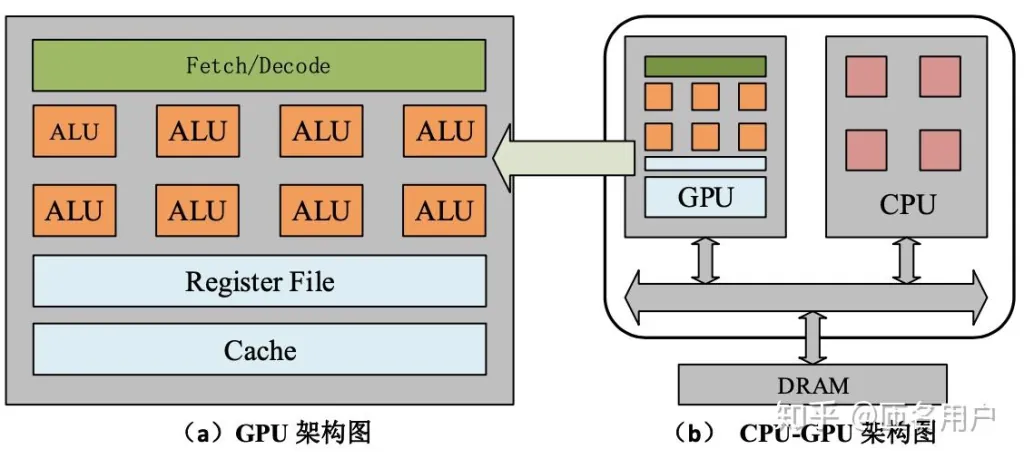 计算机
10 分钟
人工智能硬件探秘:从CPU到类脑芯片
从数据中心到边缘设备,AI 的每一次运算都离不开硬件的支撑。本文带你认识 CPU、GPU、TPU、NPU、FPGA 与类脑芯片的工作原理、适用场景与取舍,并展望量子计算、DNA 计算等前沿方向。
阅读全文 计算机
61 分钟
初识人工智能——神经网络&强化学习
从 AlphaGO 到斯坦福小镇,人工智能正以前所未有的速度渗透各个领域。本文带你初识 AI:它如何让机器”能看、能听、能说、能想”,并聚焦神经网络与强化学习的核心思想。
阅读全文 教程
36 分钟
Godot从安装到卸载——Godot学习笔记
游戏引擎就像一座”虚拟世界工厂”。本篇从游戏引擎概念讲起,带你认识开源轻量的 Godot:节点树架构、类 Python 的 GDScript 语法,以及从官网/Steam 安装到上手开发的完整学习笔记。
阅读全文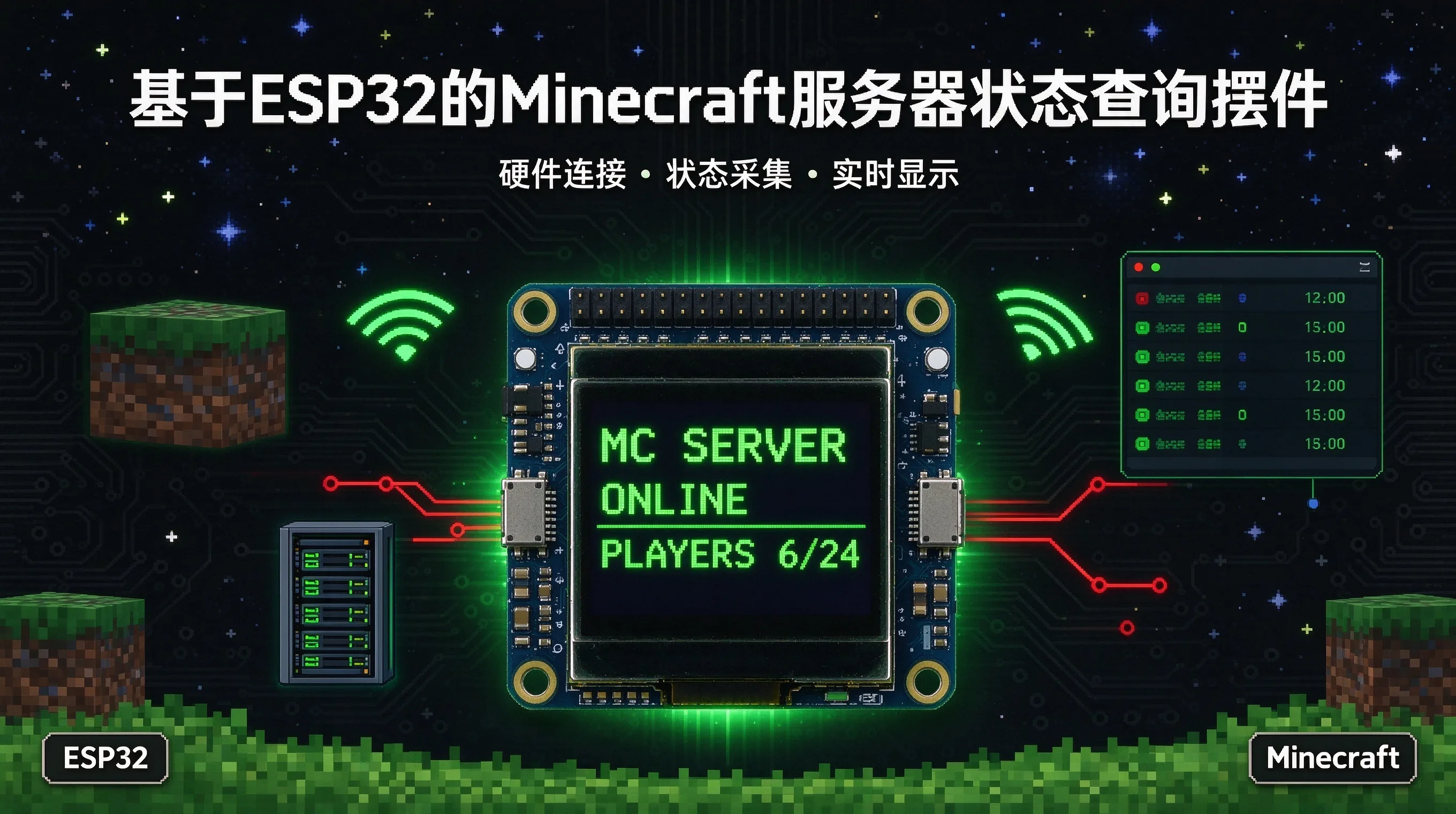 开发板
7 分钟
基于ESP32的Minecraft服务器状态查询摆件
为免去频繁查看 MC 服务器状态的繁琐,我用一块 ESP32 加 0.96 英寸 OLED 屏(SSD1306)做了个桌面状态摆件,约 20~25 元成本即可实时显示服务器离线状态与在线玩家数,本文附完整 MicroPython 代码。
阅读全文