
为免去频繁查看 MC 服务器状态的繁琐,我用一块 ESP32 加 0.96 英寸 OLED 屏(SSD1306)做了个桌面状态摆件,约 20~25 元成本即可实时显示服务器离线状态与在线玩家数,本文附完整 MicroPython 代码。

作为MC服务器的开发者和管理员,我时常需要获取服务器的某些状态信息,比如服务器的离线状况、在线玩家数量等。然而,目前查询这些信息的方式,无论是通过登录MC的多人游戏界面查看,还是利用插件进行远程查看(例如通过网页或QQ机器人),都让我觉得颇为繁琐。之前我在B站上看到有人使用开发板和屏幕自主制作了一个显示B站用户状态(如粉丝数、播放量等)的项目,这给了我很大的启发。因此,我萌生了制作一个能置于桌面的MC服务器状态显示屏的想法。

于是乎,我又拿起了我的ESP32鼓捣了起来。在折腾了半个星期后终于弄出来了第一个版本,下面是效果图:
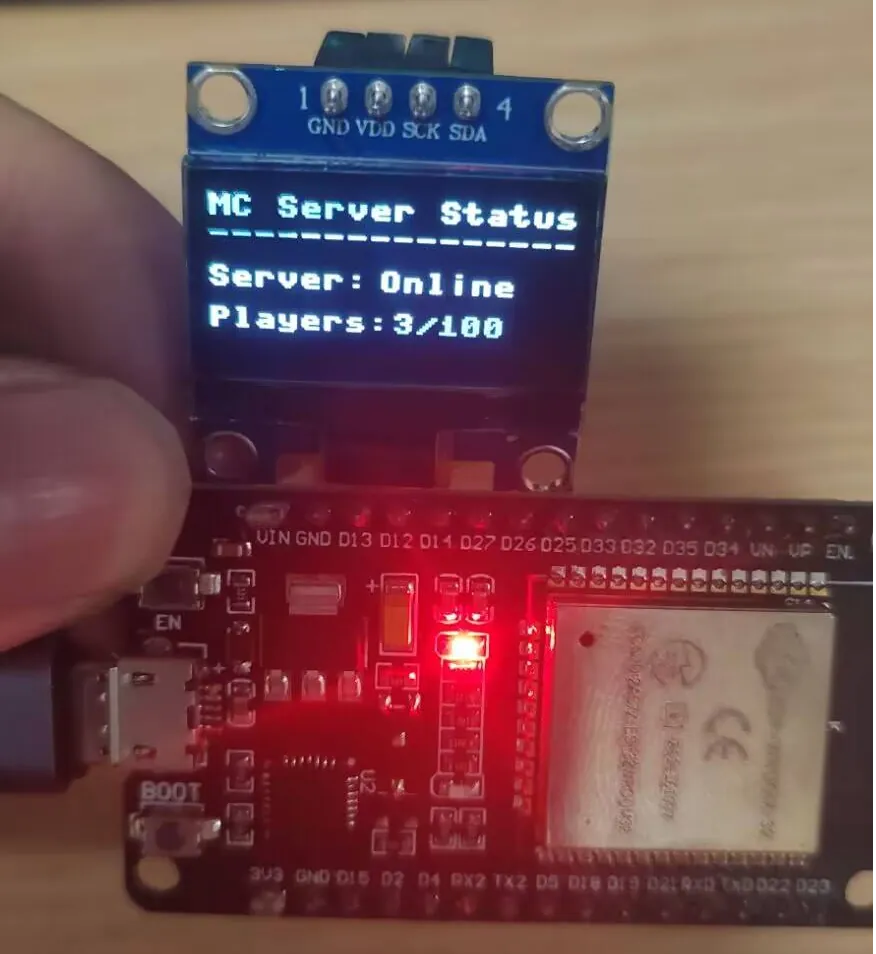
如图所示(图片所示版本为该项目的第一个测试版本),你需要一块ESP32开发板,同时还需要一块0.96英寸的OLED屏幕,屏幕驱动为SSD1306,最后别忘记准备好杜邦线,成本总计在20~25元范围内。不过使用0.96英寸屏幕的弊端就是,屏幕空间太有限了,无法显示更多内容。于是在后续版本中,我添加了自动翻页的功能,这样就能在有限的空间内显示更多内容了。不过毕竟是0.96英寸的屏幕,即使加入了翻页功能在有些情况也会显得不尽人意。好了好了,废话不多说,接下来就是代码展示环节(编译环境选择MicroPython):

屏幕驱动(ssd1306.py):

1
2
3
4
5
6
7
8
9
10
11
12
13
14
15
16
17
18
19
20
21
22
23
24
25
26
27
28
29
30
31
32
33
34
35
36
37
38
39
40
41
42
43
44
45
46
47
48
49
50
51
52
53
54
55
56
57
58
59
60
61
62
63
64
65
66
67
68
69
70
71
72
73
74
75
76
77
78
79
80
81
82
83
84
85
86
87
88
89
90
91
92
93
94
95
96
97
98
99
100
101
102
103
104
105
106
107
108
109
110
111
112
113
114
115
116
117
118
119
120
121
122
123
124
125
126
127
128
129
130
131
132
133
134
135
136
137
138
139
140
141
142
143
144
145
146
147
148
149
150
151
152
153
154
155
156
157
158
159
160
161
162
163
164
#MicroPython SSD1306 OLED driver, I2C and SPI interfaces created by Adafruit

import time
import framebuf

# register definitions
SET_CONTRAST = const(0x81)
SET_ENTIRE_ON = const(0xa4)
SET_NORM_INV = const(0xa6)
SET_DISP = const(0xae)
SET_MEM_ADDR = const(0x20)
SET_COL_ADDR = const(0x21)
SET_PAGE_ADDR = const(0x22)
SET_DISP_START_LINE = const(0x40)
SET_SEG_REMAP = const(0xa0)
SET_MUX_RATIO = const(0xa8)
SET_COM_OUT_DIR = const(0xc0)
SET_DISP_OFFSET = const(0xd3)
SET_COM_PIN_CFG = const(0xda)
SET_DISP_CLK_DIV = const(0xd5)
SET_PRECHARGE = const(0xd9)
SET_VCOM_DESEL = const(0xdb)
SET_CHARGE_PUMP = const(0x8d)

class SSD1306:
def __init__(self, width, height, external_vcc):
self.width = width
self.height = height
self.external_vcc = external_vcc
self.pages = self.height // 8
# Note the subclass must initialize self.framebuf to a framebuffer.
# This is necessary because the underlying data buffer is different
# between I2C and SPI implementations (I2C needs an extra byte).
self.poweron()
self.init_display()

def init_display(self):
for cmd in (
SET_DISP | 0x00, # off
# address setting
SET_MEM_ADDR, 0x00, # horizontal
# resolution and layout
SET_DISP_START_LINE | 0x00,
SET_SEG_REMAP | 0x01, # column addr 127 mapped to SEG0
SET_MUX_RATIO, self.height - 1,
SET_COM_OUT_DIR | 0x08, # scan from COM[N] to COM0
SET_DISP_OFFSET, 0x00,
SET_COM_PIN_CFG, 0x02 if self.height == 32 else 0x12,
# timing and driving scheme
SET_DISP_CLK_DIV, 0x80,
SET_PRECHARGE, 0x22 if self.external_vcc else 0xf1,
SET_VCOM_DESEL, 0x30, # 0.83*Vcc
# display
SET_CONTRAST, 0xff, # maximum
SET_ENTIRE_ON, # output follows RAM contents
SET_NORM_INV, # not inverted
# charge pump
SET_CHARGE_PUMP, 0x10 if self.external_vcc else 0x14,
SET_DISP | 0x01): # on
self.write_cmd(cmd)
self.fill(0)
self.show()

def poweroff(self):
self.write_cmd(SET_DISP | 0x00)

def contrast(self, contrast):
self.write_cmd(SET_CONTRAST)
self.write_cmd(contrast)

def invert(self, invert):
self.write_cmd(SET_NORM_INV | (invert & 1))

def show(self):
x0 = 0
x1 = self.width - 1
if self.width == 64:
# displays with width of 64 pixels are shifted by 32
x0 += 32
x1 += 32
self.write_cmd(SET_COL_ADDR)
self.write_cmd(x0)
self.write_cmd(x1)
self.write_cmd(SET_PAGE_ADDR)
self.write_cmd(0)
self.write_cmd(self.pages - 1)
self.write_framebuf()

def fill(self, col):
self.framebuf.fill(col)

def pixel(self, x, y, col):
self.framebuf.pixel(x, y, col)

def scroll(self, dx, dy):
self.framebuf.scroll(dx, dy)

def text(self, string, x, y, col=1):
self.framebuf.text(string, x, y, col)

class SSD1306_I2C(SSD1306):
def __init__(self, width, height, i2c, addr=0x3c, external_vcc=False):
self.i2c = i2c
self.addr = addr
self.temp = bytearray(2)
# Add an extra byte to the data buffer to hold an I2C data/command byte
# to use hardware-compatible I2C transactions. A memoryview of the
# buffer is used to mask this byte from the framebuffer operations
# (without a major memory hit as memoryview doesn't copy to a separate
# buffer).
self.buffer = bytearray(((height // 8) * width) + 1)
self.buffer[0] = 0x40 # Set first byte of data buffer to Co=0, D/C=1
self.framebuf = framebuf.FrameBuffer1(memoryview(self.buffer)[1:], width, height)
super().__init__(width, height, external_vcc)

def write_cmd(self, cmd):
self.temp[0] = 0x80 # Co=1, D/C#=0
self.temp[1] = cmd
self.i2c.writeto(self.addr, self.temp)

def write_framebuf(self):
# Blast out the frame buffer using a single I2C transaction to support
# hardware I2C interfaces.
self.i2c.writeto(self.addr, self.buffer)

def poweron(self):
pass

class SSD1306_SPI(SSD1306):
def __init__(self, width, height, spi, dc, res, cs, external_vcc=False):
self.rate = 10 * 1024 * 1024
dc.init(dc.OUT, value=0)
res.init(res.OUT, value=0)
cs.init(cs.OUT, value=1)
self.spi = spi
self.dc = dc
self.res = res
self.cs = cs
self.buffer = bytearray((height // 8) * width)
self.framebuf = framebuf.FrameBuffer1(self.buffer, width, height)
super().__init__(width, height, external_vcc)

def write_cmd(self, cmd):
self.spi.init(baudrate=self.rate, polarity=0, phase=0)
self.cs.high()
self.dc.low()
self.cs.low()
self.spi.write(bytearray([cmd]))
self.cs.high()

def write_framebuf(self):
self.spi.init(baudrate=self.rate, polarity=0, phase=0)
self.cs.high()
self.dc.high()
self.cs.low()
self.spi.write(self.buffer)
self.cs.high()

def poweron(self):
self.res.high()
time.sleep_ms(1)
self.res.low()
time.sleep_ms(10)
self.res.high()

主程序(main.py):

1
2
3
4
5
6
7
8
9
10
11
12
13
14
15
16
17
18
19
20
21
22
23
24
25
26
27
28
29
30
31
32
33
34
35
36
37
38
39
40
41
42
43
44
45
46
47
48
49
50
51
52
53
54
55
56
57
58
59
60
61
62
63
64
65
66
67
68
69
70
71
72
73
74
75
76
77
78
79
80
81
82
83
84
85
86
87
88
89
90
91
92
93
94
95
96
97
98
99
100
101
102
103
104
105
106
107
108
109
110
111
112
113
114
115
116
117
118
119
120
121
122
123
124
125
126
127
128
129
130
131
132
133
134
135
136
137
138
139
140
141
142
143
144
145
146
147
148
149
150
151
152
153
154
155
156
157
158
159
import network
import urequests
import json
from machine import Pin, I2C
import time

#OLED
i2c = I2C(scl=Pin(4), sda=Pin(5))
from ssd1306 import SSD1306_I2C
OLED= SSD1306_I2C(128, 64, i2c)

# 设置WiFi网络参数
SSID = 'your_ssid'
PASSWORD = 'your_password'

# API Key 和 URL
api_key = "your_apikey"
server_ip = "your_serverIP"
REMOTE_SERVICES_API_URL = f"http://xxx.xxxx.xx/api/service/remote_services_system?apikey={api_key}"
MC_SERVER_API_URL = f"http://mcstatus.goldenapplepie.xyz/api/?ip={server_ip}"

# 连接到WiFi
def connect_to_wifi(ssid, password, oled, max_retries=5, retry_delay=5):
wlan = network.WLAN(network.STA_IF)
wlan.active(True)

retries = 0
while not wlan.isconnected() and retries < max_retries:
OLED.fill(0)
OLED.text('Connecting...', 20, 30)
OLED.show()
print('Connecting to network...')
try:
wlan.connect(ssid, password)
for _ in range(10):
if wlan.isconnected():
break
time.sleep(1)
else:
raise OSError("Unable to connect to WiFi")
except OSError as e:
print('WiFi connection error:', e)
OLED.fill(0)
OLED.text('[ERROR]',32,18)
OLED.text('Connection', 20, 30)
OLED.text('Failed', 36,40)
OLED.show()
time.sleep(retry_delay)
retries += 1

if wlan.isconnected():
OLED.fill(0)
print('Network config:', wlan.ifconfig())
else:
OLED.fill(0)
OLED.text('Unable to connect', 0, 30)
OLED.show()
print('Unable to connect to WiFi after', max_retries, 'retries.')

# 获取远程服务器数据
def fetch_remote_services_data(api_url, oled):
try:
response = urequests.get(api_url)
data = response.json()
if data['status'] == 200:
node_data = data['data'][0]
cpu_usage = node_data['system']['cpuUsage'] * 100
mem_usage = node_data['system']['memUsage'] * 100
running_instances = node_data['instance']['running']
total_instances = node_data['instance']['total']
response.close()
return cpu_usage, mem_usage, running_instances, total_instances
else:
print(f"Error: API returned status {data['status']}")
OLED.fill(0)
OLED.text('MCSManager Data', 0, 5)
OLED.text('------------------', 0, 15)
OLED.text(f'API Error: {data["status"]}',10, 40)
OLED.show()
time.sleep(2)
return None, None, None, None
except Exception as e:
print("Error fetching data:", e)
OLED.fill(0)
OLED.text('Connection Error', 0, 30)
OLED.show()
time.sleep(2)
return None, None, None, None

# 获取MC服务器状态
def check_mc_server_status(url,oled):
try:
response = urequests.get(url)
data = response.json()
code = data.get("code")
if code == 200:
players = data.get("data", {}).get("players", {})
online = players.get("online", 0)
max_players = players.get("max", 0)
server_status = "在线"
elif code == 204:
server_status = "离线"
online = 0
max_players = 0
else:
server_status = "未知状态"
online = 0
max_players = 0
response.close()
return server_status, online, max_players
except Exception as e:
print("查询过程中出现错误:", e)
OLED.fill(0)
OLED.text('Connection Error', 0, 30)
OLED.show()
time.sleep(2)
return "Error", 0, 0
# 主程序
def main():
connect_to_wifi(SSID, PASSWORD, OLED, max_retries=10, retry_delay=5)

task_counter = 0
while True:
if task_counter % 2 == 0:
server_status, online, max_players = check_mc_server_status(MC_SERVER_API_URL, OLED)
display_mc_server_status(server_status, online, max_players)
else:
cpu_usage, mem_usage, running, total = fetch_remote_services_data(REMOTE_SERVICES_API_URL, OLED)
display_remote_services_data(cpu_usage, mem_usage, running, total)

task_counter += 1
time.sleep(5) # 等待5秒
# 显示MC服务器状态
def display_mc_server_status(server_status, online, max_players):
OLED.fill(0)
OLED.text('MC Server Status', 0, 5)
OLED.text('------------------', 0, 15)
OLED.text('Server:', 0, 30)
if server_status == "在线":
server_status = "Online"
elif server_status == "离线":
server_status = "Offline"
elif server_status == "未知状态":
server_status = "Unknown"
OLED.text(server_status, 60, 30)
OLED.text('Players:', 0, 45)
OLED.text(f'{online}/{max_players}', 65, 45)
OLED.show()
# 显示远程服务器数据
def display_remote_services_data(cpu_usage, mem_usage, running, total):
if cpu_usage is not None and mem_usage is not None and running is not None and total is not None:
OLED.fill(0)
OLED.text('MCSManager Data', 0, 5)
OLED.text('------------------', 0, 15)
OLED.text(f'CPU: {cpu_usage:.2f}%', 0, 25)
OLED.text(f'Mem: {mem_usage:.2f}%', 0, 40)
OLED.text(f'Instance: {running}/{total}', 0, 55)
OLED.show()
main()

把上面两个代码分别上传至ESP32中(如何上传可以参考:开发板研究笔记—ESP32篇),然后根据代码里的指示正确连接好屏幕就行了(SCK-4,SDA-5;其实市面上也有一些将屏幕直接焊在了ESP32开发板上的板子,直接使用都行)。如何使用呢,首先你需要在设置WiFi网络参数部分设置好你网络的ssid和密码,然后在设置要查询的MC服务器IP部分把你想要查询的服务器地址填上去就行,同时别忘记填写好MCSManager的管理员账户开放的APIkey(后面会细讲)与你面板的网址(xx.xxxx.xx)。在确保网络连接成功和服务器地址存在的情况下,屏幕会正常显示服务器状态信息(未知表示未查询到服务器或服务器(地址)不存在;错误表示网络连接失败);间隔5秒后,将会显示第二页有关MCSManager的信息,第二页包含CPU、内存占用情况,以及实例运行情况。

Server:Online|Offline|Unknown|Error ----> 服务器在线情况:在线|离线|未知|错误 Player:x/x ----> 当前玩家人数/服务器玩家最大人数

CPU:xx.xx%——表示为MCSManager面板占用的CPU情况 Mem:xx.xx%——表示为MCSManager面板占用的内存情况 Instance:x/x——表示为MCSManager面板运行的实例与总实例的情况

[新]Arduino版本

在后续的更新中,我还开发出了Arduino版本,与MicroPython版本不同的是,我加入了动态配置参数(wifi的ssid、密码、服务器地址等)的功能,以下就是Arduino源代码(你需要额外安装ArduinoJson库与Adafruit_SSD1306库(同时会自动安装Adafruit_GFX库)):

mc_server_status.ino

1
2
3
4
5
6
7
8
9
10
11
12
13
14
15
16
17
18
19
20
21
22
23
24
25
26
27
28
29
30
31
32
33
34
35
36
37
38
39
40
41
42
43
44
45
46
47
48
49
50
51
52
53
54
55
56
57
58
59
60
61
62
63
64
65
66
67
68
69
70
71
72
73
74
75
76
77
78
79
80
81
82
83
84
85
86
87
88
89
90
91
92
93
94
95
96
97
98
99
100
101
102
103
104
105
106
107
108
109
110
111
112
113
114
115
116
117
118
119
120
121
122
123
124
125
126
127
128
129
130
131
132
133
134
135
136
137
138
139
140
141
142
143
144
145
146
147
148
149
150
151
152
153
154
155
156
157
158
159
160
161
162
163
164
165
166
167
168
169
170
171
172
173
174
175
176
177
178
179
180
181
182
183
184
185
186
187
188
189
190
191
192
193
194
195
196
197
198
199
200
201
202
203
204
205
206
207
208
209
210
211
212
213
214
215
216
217
218
219
220
221
222
223
224
225
226
227
228
229
230
231
232
233
234
235
236
237
238
239
240
241
242
243
244
245
246
247
248
249
250
251
252
253
254
255
256
257
258
259
260
261
262
263
264
265
266
267
268
269
270
271
272
273
274
275
276
277
278
279
280
281
282
283
284
285
286
287
288
289
290
291
292
293
294
295
296
297
298
299
300
301
302
303
304
305
306
307
308
309
310
311
312
313
314
315
316
317
318
319
320
321
322
323
324
325
326
327
328
329
330
331
332
333
334
335
336
337
338
339
340
341
342
343
344
345
346
347
348
349
350
351
352
353
354
355
356
357
358
359
360
361
362
363
364
365
366
// --- 库 ---
#include <Arduino.h>
#include <WiFi.h>
#include <HTTPClient.h>
#include <ArduinoJson.h>
#include <Wire.h>
#include <Adafruit_GFX.h>
#include <Adafruit_SSD1306.h>
#include <Preferences.h>

// --- 配置 ---
Preferences preferences;

// --- 默认配置值 (如果 Preferences 中没有值,则使用这些默认值) ---
const char* DEFAULT_SSID = "your_ssid"; // 替换为你的默认 WiFi 名称
const char* DEFAULT_PASSWORD = "your_password"; // 替换为你的默认 WiFi 密码
const char* DEFAULT_API_KEY = "your_api_key"; // 默认 API 密钥
const char* DEFAULT_SERVER_IP = "server_ip"; // 默认服务器 IP
const char* DEFAULT_REMOTE_SERVICES_BASE_URL = "mcsmanager_url"; // 默认 MCSManager 面板基础 URL
const char* DEFAULT_MC_SERVER_API_URL_BASE = "http://mcstatus.goldenapplepie.xyz/api/?ip="; // 默认 MC 状态 API 基础 URL

// --- 用于存储配置的变量 ---
String ssid = "";
String password = "";
String api_key = "";
String server_ip = "";
String remote_services_base_url = "";
const char* MC_SERVER_API_URL_BASE = DEFAULT_MC_SERVER_API_URL_BASE;

// --- OLED 配置 ---
#define SCREEN_WIDTH 128
#define SCREEN_HEIGHT 64
#define OLED_RESET -1
#define OLED_SDA_PIN 5 // I2C SDA 引脚
#define OLED_SCL_PIN 4 // I2C SCL 引脚
Adafruit_SSD1306 display(SCREEN_WIDTH, SCREEN_HEIGHT, &Wire, OLED_RESET);

// --- 定时 ---
unsigned long lastUpdate = 0;
const unsigned long updateInterval = 5000; // 更新间隔 5 秒
bool displayServicesData = true;

// --- 函数声明 ---
void connectToWiFi();
void fetchAndDisplayRemoteServicesData();
void fetchAndDisplayMinecraftStatus();
void displayMinecraftStatus(String status, int online, int maxPlayers);
void displayRemoteServicesData(float cpu, float mem, int running, int total);
void displayError(String errorLine1, String errorLine2 = "");
void loadConfiguration();
void saveConfiguration();
void printConfiguration();
void printHelp();

void setup() {
Serial.begin(115200);
delay(1000);

// --- 初始化 Preferences ---
preferences.begin("config", false);

// --- 加载配置 ---
loadConfiguration();
printConfiguration();

Wire.begin(OLED_SDA_PIN, OLED_SCL_PIN);
// 初始化 OLED
if(!display.begin(SSD1306_SWITCHCAPVCC, 0x3C)) {
Serial.println(F("SSD1306 allocation failed"));
for(;;);
}
display.clearDisplay();
display.setTextSize(1);
display.setTextColor(SSD1306_WHITE);
display.setCursor(0,0);
display.println("Initializing...");
display.display();

connectToWiFi();
}

void loop() {
if (WiFi.status() != WL_CONNECTED) {
Serial.println("WiFi disconnected. Attempting to reconnect...");
display.clearDisplay();
display.setCursor(0, 30);
display.println("WiFi Disconnected");
display.display();
connectToWiFi();
}

unsigned long currentTime = millis();
if (currentTime - lastUpdate >= updateInterval) {
lastUpdate = currentTime;

if (displayServicesData) {
Serial.println("Fetching Remote Services Data...");
fetchAndDisplayRemoteServicesData();
} else {
Serial.println("Fetching Minecraft Server Status...");
fetchAndDisplayMinecraftStatus();
}
displayServicesData = !displayServicesData;
}

// --- 添加串口命令来修改配置 ---
if (Serial.available()) {
String command = Serial.readStringUntil('\n');
command.trim();

if (command.startsWith("set_ssid ")) {
String newSSID = command.substring(9);
ssid = newSSID;
Serial.println("New SSID set: " + ssid);
saveConfiguration();
} else if (command.startsWith("set_password ")) {
String newPassword = command.substring(13);
password = newPassword;
Serial.println("New password set.");
saveConfiguration();
} else if (command.startsWith("set_apikey ")) {
String newAPIKey = command.substring(11);
api_key = newAPIKey;
Serial.println("New API Key set.");
saveConfiguration();
} else if (command.startsWith("set_serverip ")) {
String newServerIP = command.substring(13);
server_ip = newServerIP;
Serial.println("New Server IP set: " + server_ip);
saveConfiguration();
} else if (command.startsWith("set_remote_base_url ")) {
String newBaseURL = command.substring(20);
remote_services_base_url = newBaseURL;
Serial.println("New Remote Services Base URL set: " + remote_services_base_url);
saveConfiguration();
} else if (command == "print_config") {
printConfiguration();
} else if (command == "reconnect_wifi") {
WiFi.disconnect();
connectToWiFi();
} else if (command == "help") {
printHelp();
}

}

}

void connectToWiFi() {
Serial.print("Connecting to ");
Serial.println(ssid.c_str());
WiFi.begin(ssid.c_str(), password.c_str());

int attempts = 0;
const int maxAttempts = 20;
while (WiFi.status() != WL_CONNECTED && attempts < maxAttempts) {
delay(500);
Serial.print(".");
attempts++;
}

if (WiFi.status() == WL_CONNECTED) {
Serial.println("");
Serial.println("WiFi connected!");
Serial.print("IP address: ");
Serial.println(WiFi.localIP());

display.clearDisplay();
display.setCursor(0, 10);
display.println("WiFi Connected!");
display.setCursor(0, 25);
display.print("IP: ");
display.println(WiFi.localIP());
display.display();
delay(2000);
} else {
Serial.println("");
Serial.println("Failed to connect to WiFi.");
display.clearDisplay();
display.setCursor(0, 20);
display.println("WiFi Connection");
display.setCursor(0, 35);
display.println("FAILED");
display.display();
// while(true) { delay(1000); }
}
}

void fetchAndDisplayRemoteServicesData() {
if (WiFi.status() != WL_CONNECTED) {
displayError("No WiFi");
return;
}

HTTPClient http;
// 动态构建完整 URL
String url = remote_services_base_url + "/api/service/remote_services_system?apikey=" + api_key;

http.begin(url);
int httpResponseCode = http.GET();

if (httpResponseCode > 0) {
String payload = http.getString();
Serial.println("API Response: " + payload);

JsonDocument doc;
DeserializationError error = deserializeJson(doc, payload);

if (error) {
Serial.print("JSON Deserialize Error: ");
Serial.println(error.c_str());
displayError("JSON Parse Error");
http.end();
return;
}

int status = doc["status"];
if (status == 200) {
JsonObject systemData = doc["data"][0]["system"];
float cpuUsage = systemData["cpuUsage"];
float memUsage = systemData["memUsage"];
int running = doc["data"][0]["instance"]["running"];
int total = doc["data"][0]["instance"]["total"];

// 调用显示函数
displayRemoteServicesData(cpuUsage * 100, memUsage * 100, running, total);
} else {
Serial.printf("API returned error status: %d\n", status);
displayError("API Error", "Status: " + String(status));
}
} else {
Serial.printf("HTTP GET Error: %d\n", httpResponseCode);
displayError("HTTP Request Failed", "Code: " + String(httpResponseCode));
}
http.end();
}

void fetchAndDisplayMinecraftStatus() {
if (WiFi.status() != WL_CONNECTED) {
displayError("No WiFi");
return;
}

HTTPClient http;
String url = String(MC_SERVER_API_URL_BASE) + server_ip;

http.begin(url);
int httpResponseCode = http.GET();

if (httpResponseCode > 0) {
String payload = http.getString();
Serial.println("MC API Response: " + payload);

JsonDocument doc;
DeserializationError error = deserializeJson(doc, payload);

if (error) {
Serial.print("JSON Deserialize Error: ");
Serial.println(error.c_str());
displayError("JSON Parse Error");
http.end();
return;
}

int code = doc["code"];
if (code == 200) {
int online = doc["data"]["players"]["online"];
int max = doc["data"]["players"]["max"];
displayMinecraftStatus("Online", online, max);
} else if (code == 204) {
displayMinecraftStatus("Offline", 0, 0);
} else {
displayMinecraftStatus("Unknown", 0, 0);
}
} else {
Serial.printf("HTTP GET Error: %d\n", httpResponseCode);
displayError("HTTP Request Failed", "Code: " + String(httpResponseCode));
}
http.end();
}

void displayMinecraftStatus(String status, int online, int maxPlayers) {
display.clearDisplay();
display.setCursor(0, 5);
display.println("MC Server Status");
display.println("------------------");
display.setCursor(0, 30);
display.print("Server: ");
display.println(status);
display.setCursor(0, 45);
display.print("Players: ");
display.print(online);
display.print("/");
display.println(maxPlayers);
display.display();
}

void displayRemoteServicesData(float cpu, float mem, int running, int total) {
display.clearDisplay();
display.setCursor(0, 5);
display.println("MCSManager Data"); // 标题
display.println("------------------");
display.setCursor(0, 25);
display.printf("CPU: %.2f%%\n", cpu); // 表示为MCSManager面板占用的CPU情况
display.setCursor(0, 40);
display.printf("Mem: %.2f%%\n", mem); // 表示为MCSManager面板占用的内存情况
display.setCursor(0, 55);
display.printf("Instance: %d/%d", running, total); // 表示为MCSManager面板运行的实例与总实例的情况
display.display();
}

void displayError(String errorLine1, String errorLine2) {
display.clearDisplay();
display.setCursor(0, 20);
display.println(errorLine1);
if (errorLine2 != "") {
display.setCursor(0, 35);
display.println(errorLine2);
}
display.display();
delay(2000);
}

// --- 新增函数 ---

void loadConfiguration() {
// 从 Preferences 加载配置,如果不存在则使用默认值
ssid = preferences.getString("ssid", DEFAULT_SSID);
password = preferences.getString("password", DEFAULT_PASSWORD);
api_key = preferences.getString("api_key", DEFAULT_API_KEY);
server_ip = preferences.getString("server_ip", DEFAULT_SERVER_IP);
remote_services_base_url = preferences.getString("remote_base_url", DEFAULT_REMOTE_SERVICES_BASE_URL);
}

void saveConfiguration() {
// 保存配置到 Preferences
preferences.putString("ssid", ssid);
preferences.putString("password", password);
preferences.putString("api_key", api_key);
preferences.putString("server_ip", server_ip);
preferences.putString("remote_base_url", remote_services_base_url);
Serial.println("Configuration saved to Preferences.");
}

void printConfiguration() {
Serial.println("--- Current Configuration ---");
Serial.println("SSID: " + ssid);
Serial.println("Server IP: " + server_ip);
Serial.println("Remote Services Base URL: " + remote_services_base_url);
Serial.println("MC Server API URL Base: " + String(MC_SERVER_API_URL_BASE));
Serial.println("---------------------------");
}

// 打印帮助信息
void printHelp() {
Serial.println("\n--- Available Commands ---");
Serial.println("help - 显示此帮助信息");
Serial.println("set_ssid <ssid> - 设置 WiFi 名称 (SSID)");
Serial.println("set_password <password> - 设置 WiFi 密码");
Serial.println("set_apikey <key> - 设置 API 密钥");
Serial.println("set_serverip <ip> - 设置 MC 服务器 IP");
Serial.println("set_remote_base_url <url> - 设置 MCSManager 面板基础 URL (例如: http://panel.example.com)");
Serial.println("print_config - 打印当前配置");
Serial.println("reconnect_wifi - 断开并重新连接 WiFi");
Serial.println("---------------------------\n");
}

使用方法:

指令 功能
help 显示所有可用命令
print_config 打印当前所有配置
set_ssid <ssid> 设置 WiFi 名称
set_password <password> 设置 WiFi 密码
set_apikey <apikey> 设置 MCSManager 的 API Key
set_serverip <serverip> 设置 Minecraft 服务器地址
set_remote_base_url <url> 设置 MCSManager 面板 URL(格式:http://xxx.xxxx.xx)
reconnect_wifi 手动断开并重连 WiFi

bin文件与烧录流程:

下载:MC_Server_Status.ino.merged.bin

以windows为例,你需要准备以下工具:计算机(带有python环境,且有esptool工具(pip install esptool))、ESP32+SSD1306屏幕+数据线、UartAssist.exe(串口通信调试工具)

烧录示例指令:

python -m esptool --port COM5 --baud 460800 write_flash -z 0x0 MC_Server_Status.ino.merged.bin

原理讲解:

其实原理很简单,其实就是一个利用python代码爬取API内容的过程:

API(Application Programming Interface,应用程序编程接口)是一些预先定义的函数,目的是提供应用程序与开发人员基于某软件或硬件得以访问一组例程的能力,而又无需访问源码,或理解内部工作机制的细节。

API就像是一道桥梁,让不同的软件能够互相沟通。比如,你手机上的某个应用想知道今天的天气,它就可以通过一个天气API,去向专门提供天气信息的软件询问。这样,你的应用就能轻松地显示天气情况,而不需要自己费劲去查找和处理这些数据。简单来说,API帮助软件之间方便、快捷地交换信息和功能。

因此,为了实现这个功能,我专门在GitHub上找了一个MC服务器状态信息查询API源码:PHP-Minecraft-Query,然后将其部署妥当,可以直接使用。如何使用呢,首先你得记住它的网址: http://mcstatus.goldenapplepie.xyz/api/ ,接着,你在这个网址后面加上参数:?ip=,这样就会返回一个json格式的页面,它包含服务器的查询时间、名称、版本、人数、motd等内容。例如,我们输入http://mcstatus.goldenapplepie.xyz/api/?ip=mc.eqmemory.cn后查询,就会查询地址为mc.eqmemory.cn的MC服务器状态。*关于这个API更多的使用方法,你可以查看这个界面:我的世界服务器状态查询

对于MCSManager,其实你可以直接在该项目的使用文档中找到有关API使用的教程,这边简单说两句。首先,你需要根据文档自行部署一个MCSManager控制面板来,接下来在面板内登录账号点击个人资料打开用户信息页面,然后你可以在这里面找到APIKEY,点击生成就可以获取APIkey了。对于其它更多细节,请仔细查阅使用文档。

有了API做基础,接下来,我们返回到ESP32上。

(以micropython为例)首先,由于ESP32无法自主的访问某个url,我们必须将其联网,不过这个对我们来说小菜一碟,函数connect_to_wifi()就是用来联网的。接着通过urequests.get(url)向指定的API接口发送GET请求,获取MC服务器的状态信息。然后,我们将返回的JSON格式数据解析成Python字典,从中提取出我们关心的信息,比如服务器的在线状态、在线玩家数量以及最大玩家数量等。

在主程序中,我们首先调用connect_to_wifi()函数连接到WiFi网络。这个函数会尝试多次连接,直到连接成功或者达到最大尝试次数。连接成功后,程序会进入一个无限循环,在这个循环中不断地调用check_mc_server_status()函数来查询MC服务器的状态,并将查询结果显示在OLED屏幕上。

check_mc_server_status()函数是核心部分,它负责向API接口发送请求并处理返回的响应。如果服务器在线,我们会从响应中提取出在线玩家数量和最大玩家数量;如果服务器离线或者出现其他错误,我们会返回相应的错误信息。整个程序运行起来后,就可以在OLED屏幕上实时看到MC服务器的状态信息了。

Todo:把屏幕升级成彩色大屏,同时给界面也美化一下,以及增加更多功能(比如自动联网、自动警报啥的x)。

PCB文件:暂时没有(x)